
Create and submit a template
A template is a message Meta approves in advance so you can use it to start conversations. If you have not read Why templates have to be approved, start there — it explains the categories, which is the one choice here you cannot casually change.
Before you start
- A connected number. Templates belong to a specific number, so pick the right one.
- If you want a picture or PDF at the top, have the file ready, or already in your media library.
Steps
-
In the sidebar, open Channels → WhatsApp → Templates.
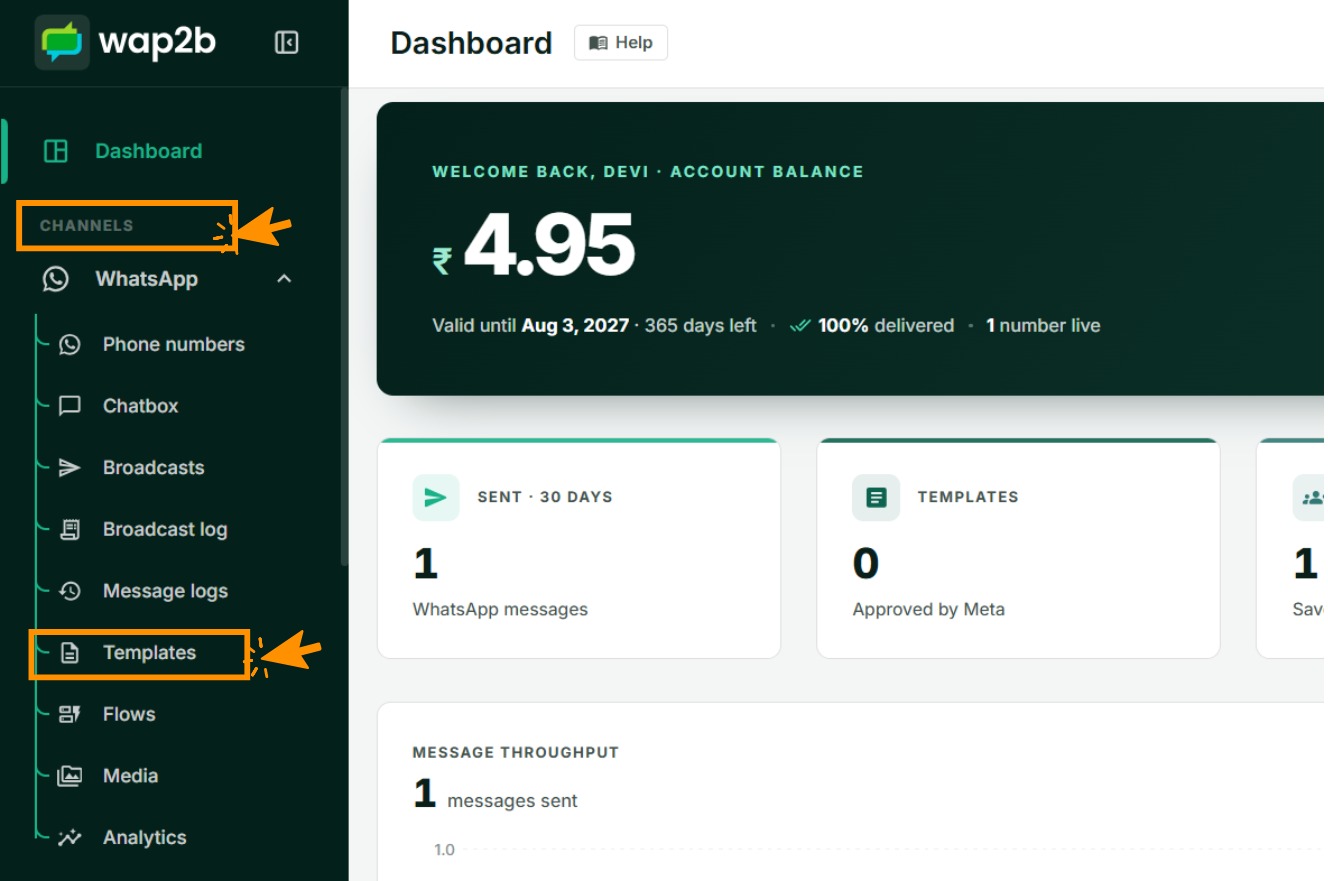
Templates live under the WhatsApp channel. -
Click New template at the top right.
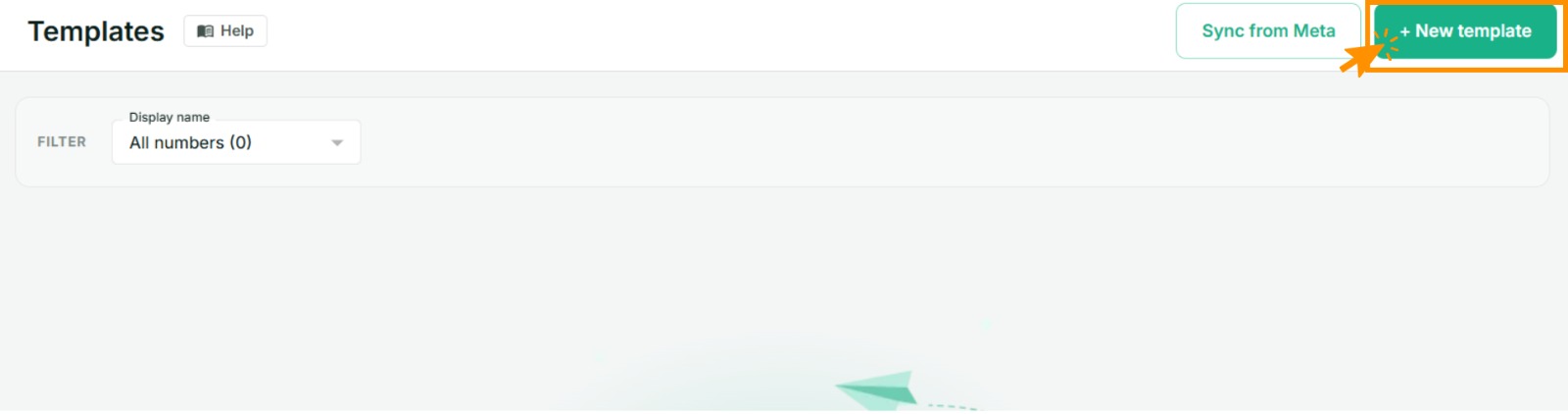
Sync from Meta beside it pulls in templates created outside Wap2b. -
Fill in Template details:
- WhatsApp number — which of your numbers this template is for.
- Template name — internal only; customers never see it. Lowercase letters,
numbers and underscores. Name it for what it does:
order_shipped, nottemplate_3_final. It locks once submitted to Meta. - Language — the language you are actually writing in. Meta checks this.
- Category — Marketing, Utility or Authentication. Choose honestly; see the category guide.
- Template type — Standard, or Carousel for swipeable product cards.
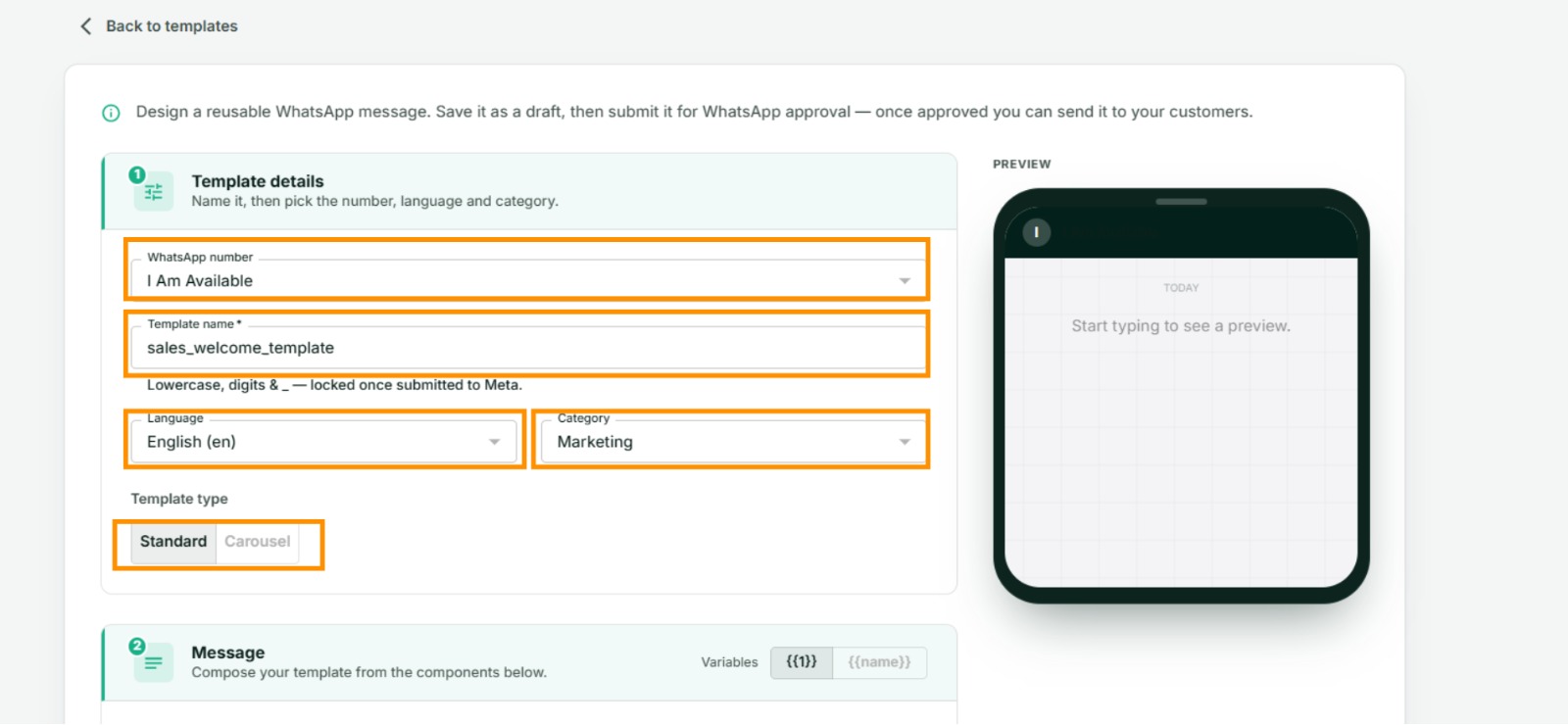
Name and category are the two that are painful to change later. -
Build the message (below), watching the live preview on the right, then Save as draft.
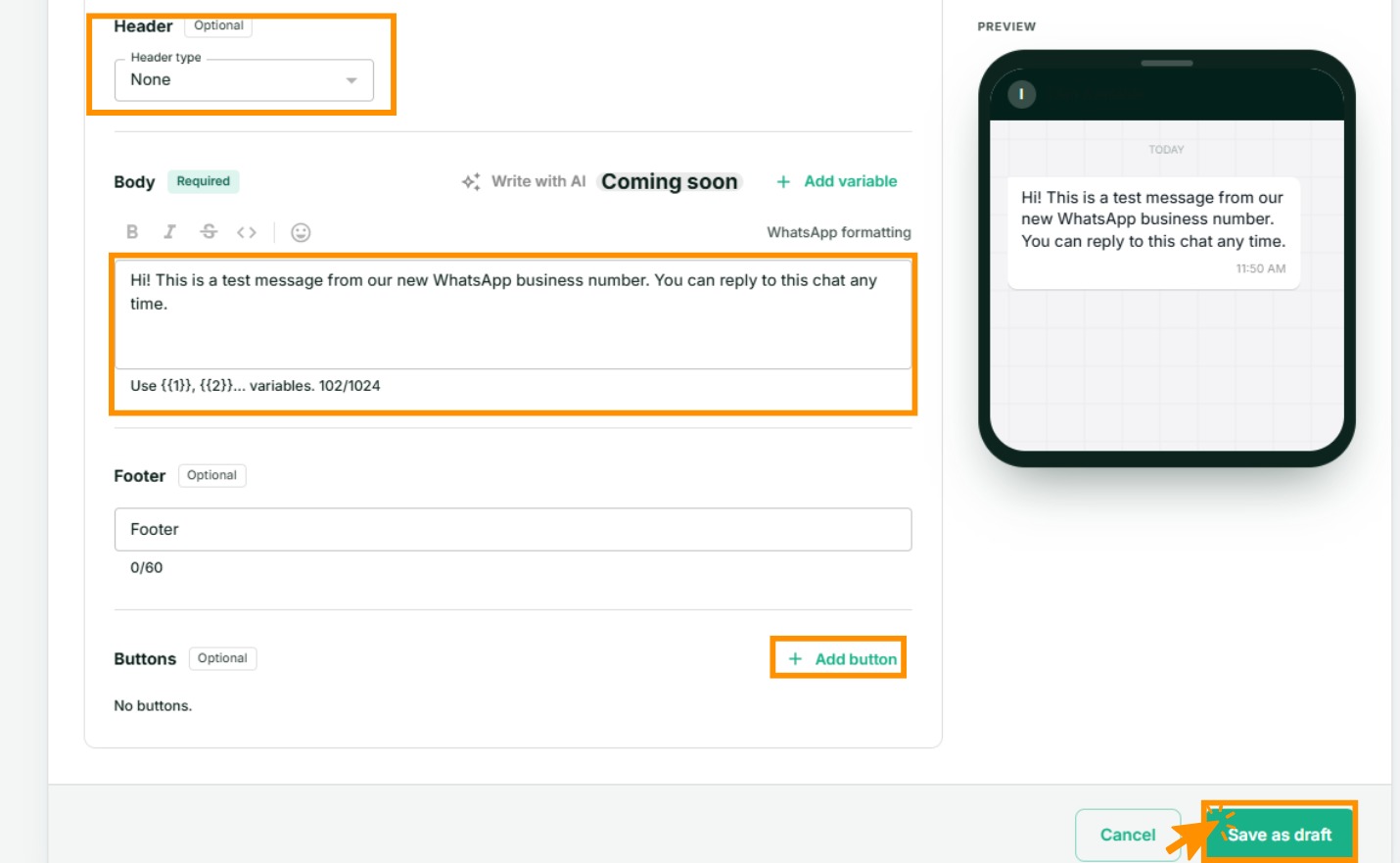
The preview on the right updates as you type. -
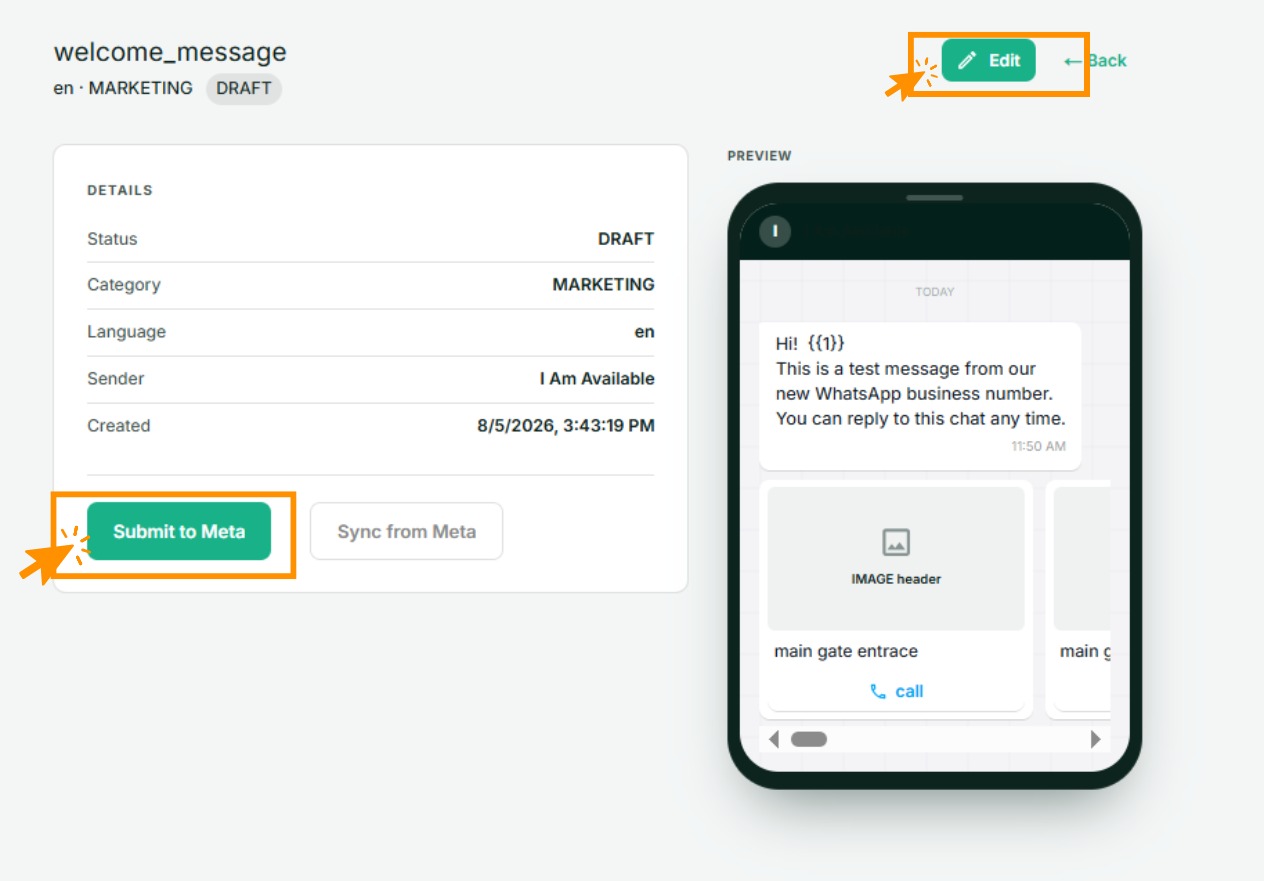
On the template's page, check it over and click Submit to Meta. Nothing is sent to Meta until you do — a draft can be edited freely, a submitted template cannot.
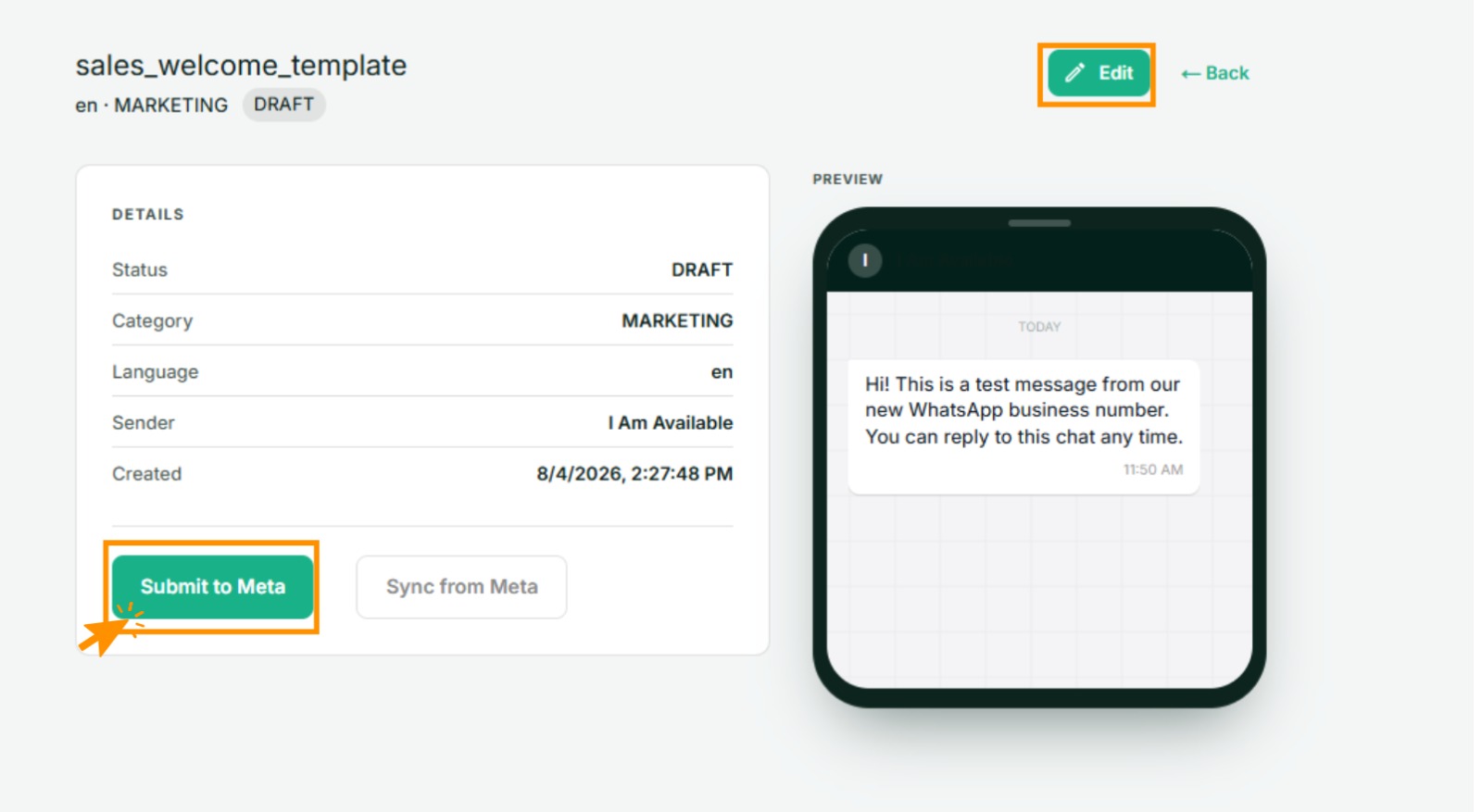
Edit while it still says DRAFT. After submission the name and category are fixed.
The template moves to Pending. Most come back approved within minutes.
Building the message
Header — optional
One of:
- Text — a single short line. Can hold one variable.
- Image, video or document — good for product shots, receipts and tickets. You upload a sample now; the real file is chosen per send.
Body — required
The message itself. This is where variables go.
Write it as a person, not as a system. "Hi Priya, your order is on its way" reads better and gets blocked less than "DEAR CUSTOMER YOUR ORDER STATUS HAS BEEN UPDATED".
Footer — optional
Small grey text at the bottom. Best used for the thing you want on every message: "Reply STOP to unsubscribe."
Buttons — optional
Up to three, of these kinds:
- Visit website — opens a link. The end of the URL can be a variable, so each recipient gets their own order or booking page.
- Call — dials a number you specify.
- Quick reply — the customer taps and their tap comes back to you as a reply, which opens a 24-hour window. Cheap and effective: "Yes, confirm" / "Reschedule".
Variables
A variable is a blank in the body, written {{1}}, {{2}}, numbered in order:
Hi
{{1}}, your order{{2}}will arrive on{{3}}.
For each one you must supply a sample value — a realistic example. Meta reads the
template with the samples filled in, so {{1}} = Priya gets approved where {{1}} =
xxx may not.
Rules worth knowing before you get rejected:
- The body cannot start or end with a variable.
- No two variables side by side.
- Number them in sequence with no gaps.
You fill in the real values when you send — see Personalise each message.
Let the AI write it
Coming soon. You will be able to describe the message you want in plain words, pick a tone and a language, and have Wap2b draft the template for you. The Write with AI button sits above the body field, marked Coming soon until it is switched on.
When it arrives, read what it produces before submitting. It is a starting point, and it does not know your business.
Carousel templates
For showing several products in one message, a carousel gives you swipeable cards, each with its own image and buttons. Useful for catalogue-style marketing; overkill for anything transactional.
Switch Template type to Carousel in step 3. The preview changes to show the swipeable cards.
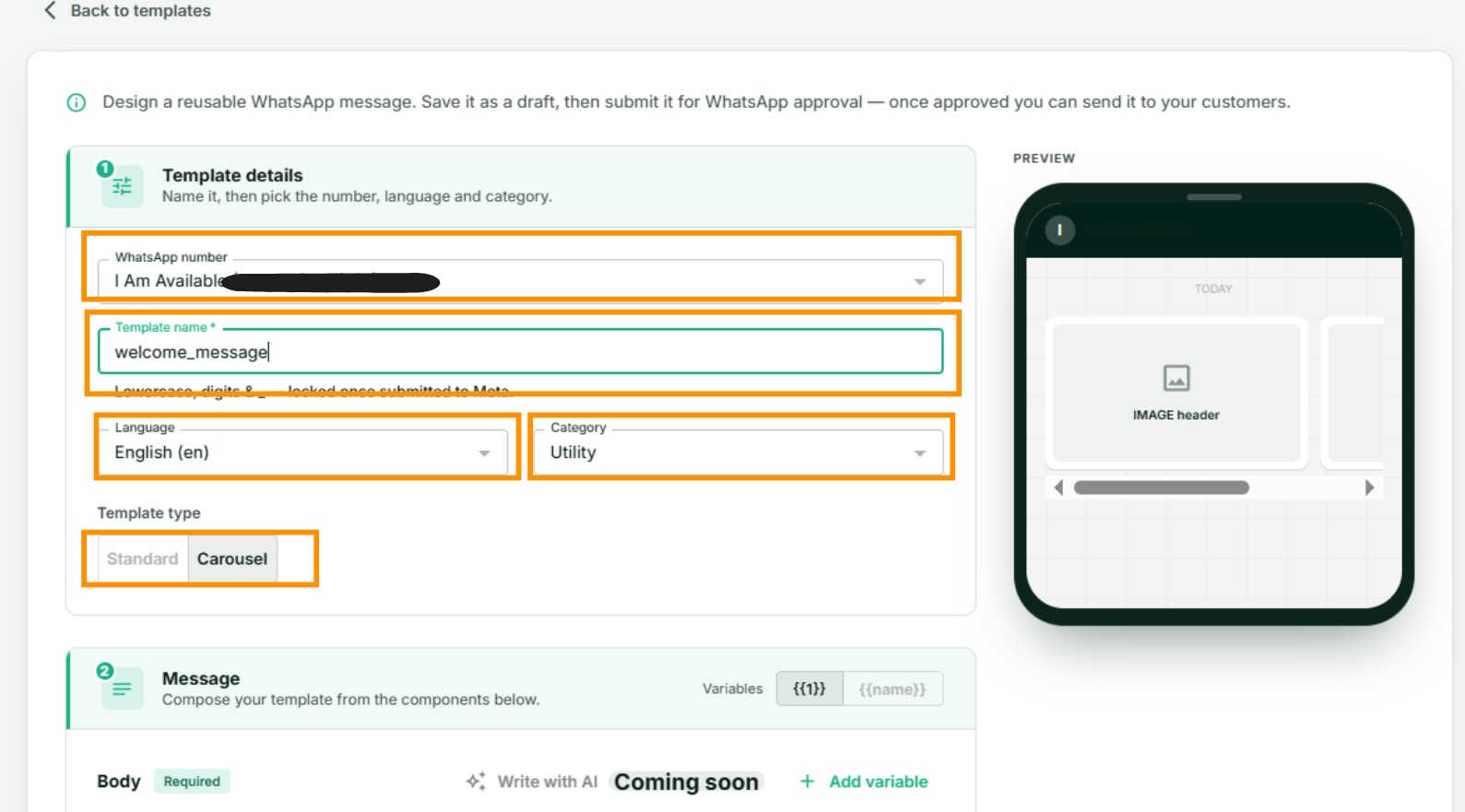
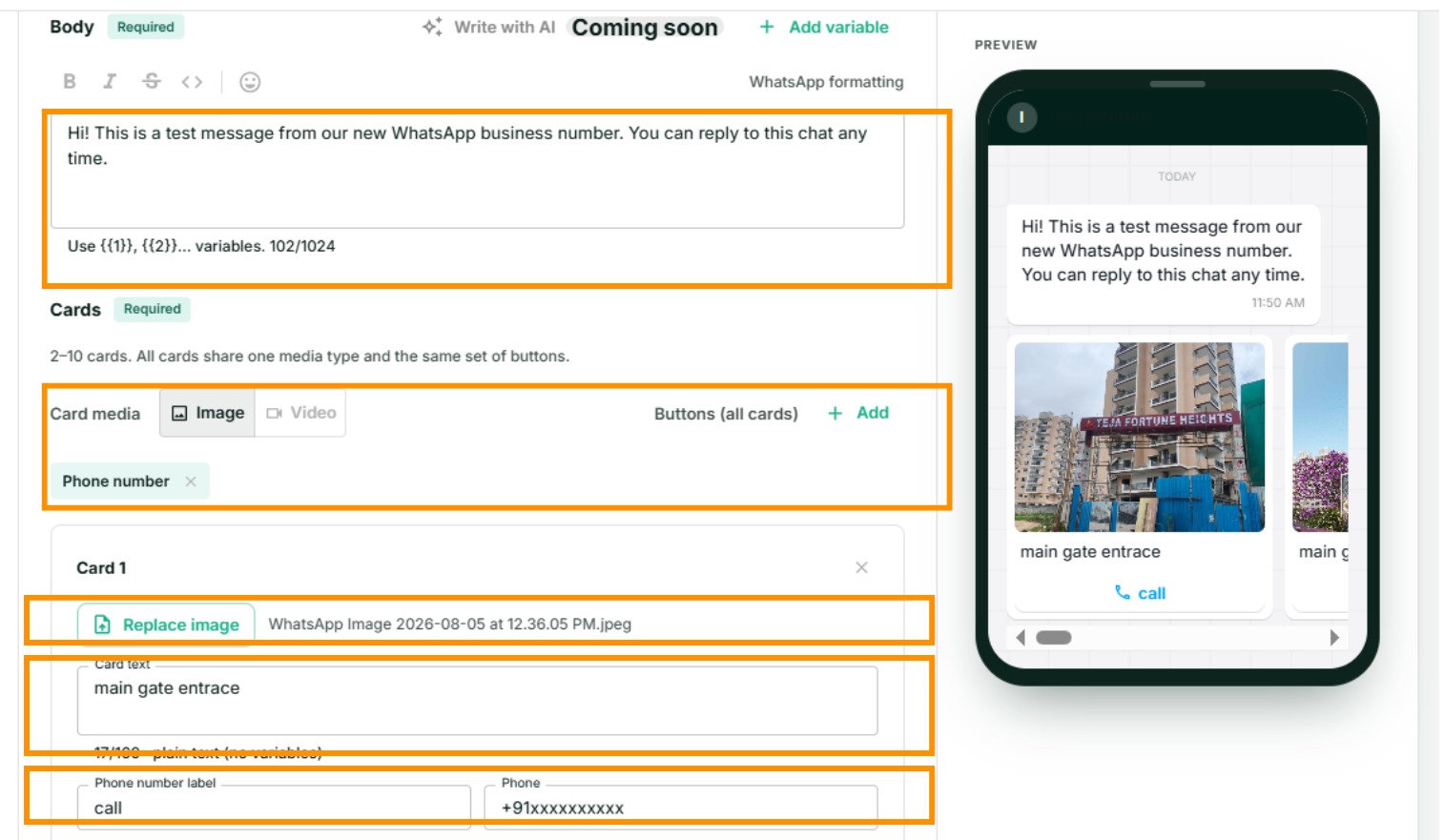
Below the body you get a Cards section instead of a single header. Two rules govern the whole set:
- All cards share one media type. Choose Image or Video once, and every card follows it. You cannot mix.
- All cards share the same buttons. Add a button — a phone number, a website link, a quick reply — and it appears on every card. Only the values differ per card.
Choosing Video swaps every card's picker to a video upload, and the preview header changes with it.
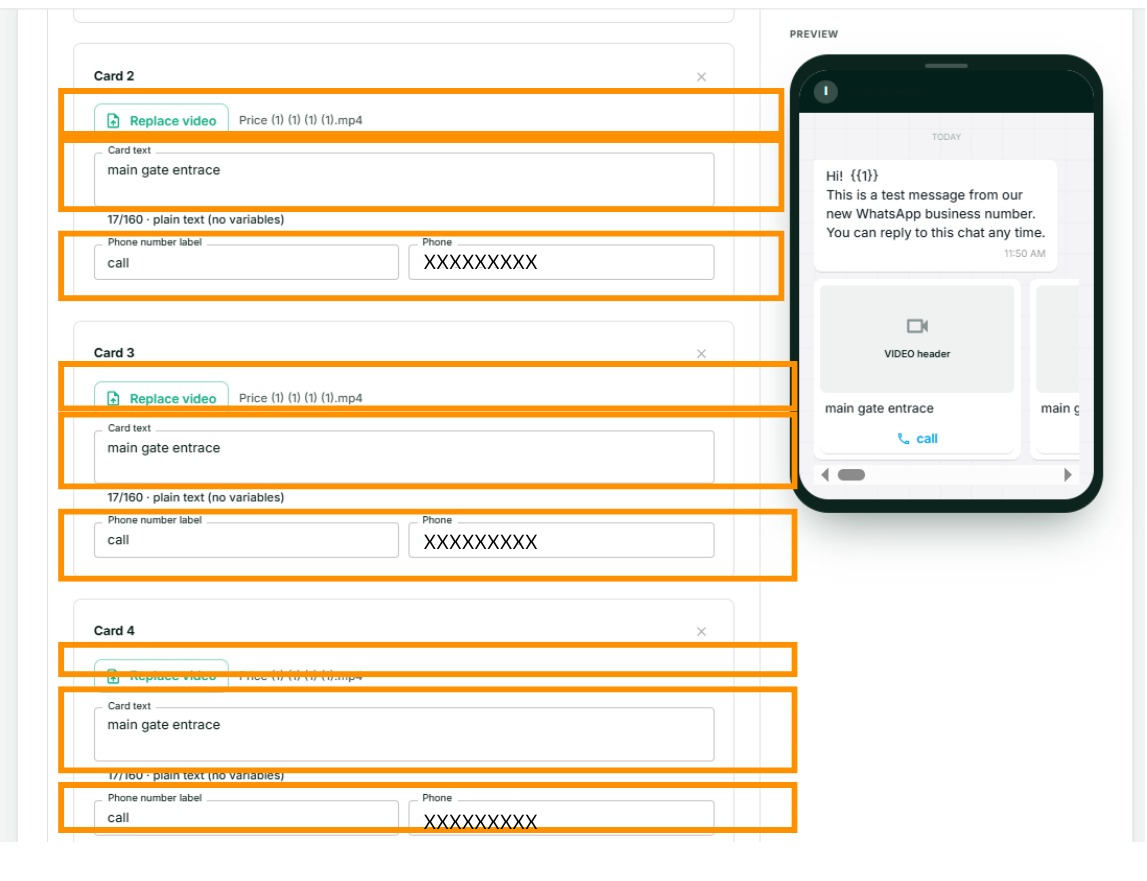
You need at least 2 cards and can have at most 10. The Add card control shows the count and stops there.
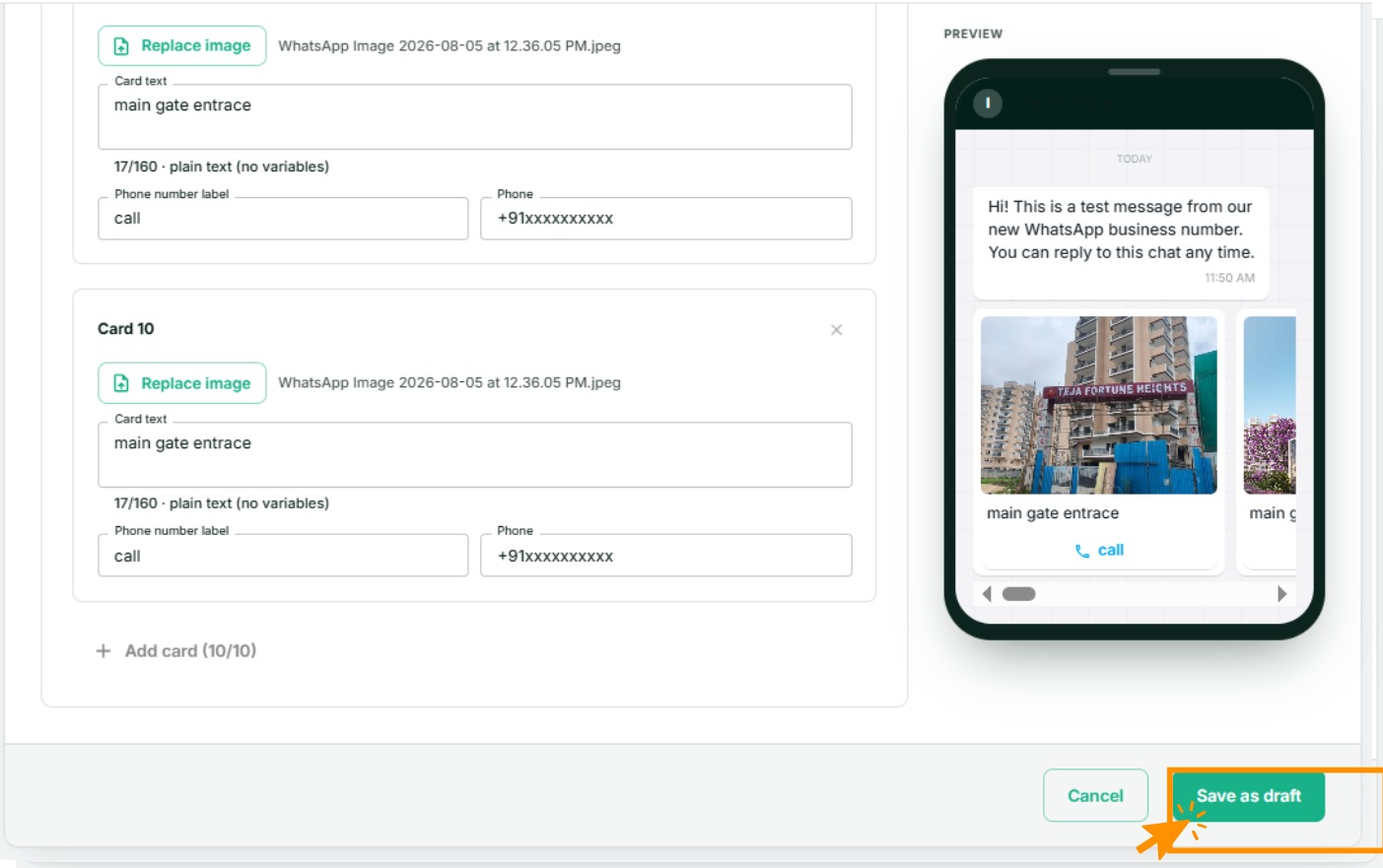
Submitting works the same as any other template — save the draft, then Submit to Meta from the template's page. Meta reviews every card.
If something goes wrong
- "Template name already exists". Names are unique per number. Add a version suffix, or edit the existing one.
- The submit button will not enable. A required field is empty — usually a sample value for a variable, or the body itself.
- It was rejected. See Why was my template rejected?
- Wap2b blocked it before Meta saw it. Our own check found something likely to be read as misleading. The message explains what; fixing it is faster than arguing with a Meta rejection.
- It is approved but not in the broadcast picker. Broadcasts only offer templates approved for the selected number. Check you picked the right one.