
Connect a WhatsApp Business App number
This walkthrough is for a number that is already running on the WhatsApp Business App on a phone, where you want to keep using that app. Meta calls this coexistence: the app on the handset keeps working exactly as it does today, and the same number also becomes available to your team inside Wap2b.
Is this the right page for you?
Only if the number is on the WhatsApp Business App (the green business app) right now.
For a number that has never been on WhatsApp — a new SIM, a landline, an IVR number — use Connect your WhatsApp number instead. The first seven screens look the same, then the two paths separate and the rest of this page will not match what you see.
Before you start
You need:
- The handset, unlocked, with the WhatsApp Business App signed in. You scan a QR code from it and receive a verification code inside the app, so keep it beside you the whole way through.
- A Facebook account you can log in to, which is an admin of your business. Use an established profile — brand-new Facebook profiles are often restricted by Meta and the flow fails without explaining why.
- Your business name, country and website. Meta asks for all three and checks the site.
- Your business to be legally registered. This is not open to individuals.
Set aside ten uninterrupted minutes. The flow does not save halfway.
Leave two-step verification alone
A brand-new number has to have two-step verification switched off before it is connected. This path is the opposite — the WhatsApp Business App path does not need it changed, so do not go turning it off on the handset. Leave the setting exactly as you found it.
Steps
-
In Wap2b's sidebar, open WhatsApp → Phone numbers.
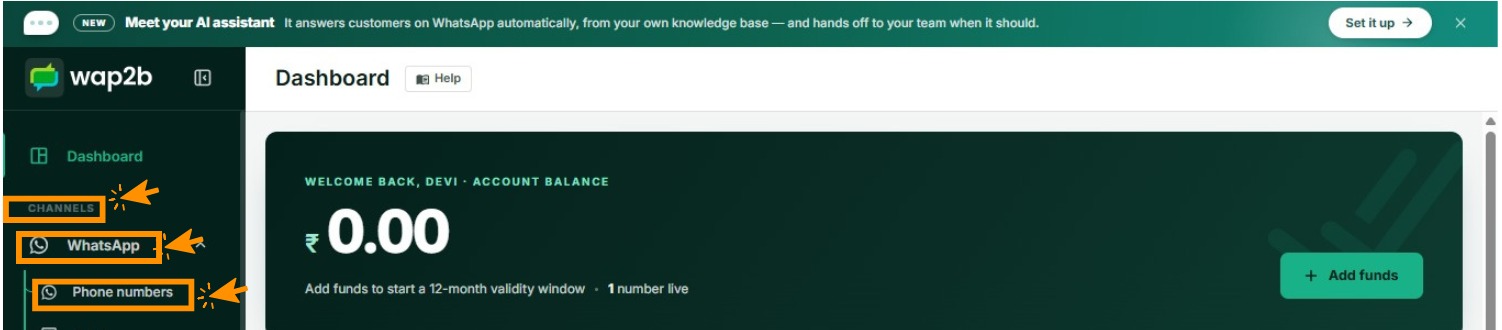
Everything to do with your numbers lives here. -
Click Connect new number at the top right. On a brand-new account the same thing sits in the middle of the page as Connect your first number.
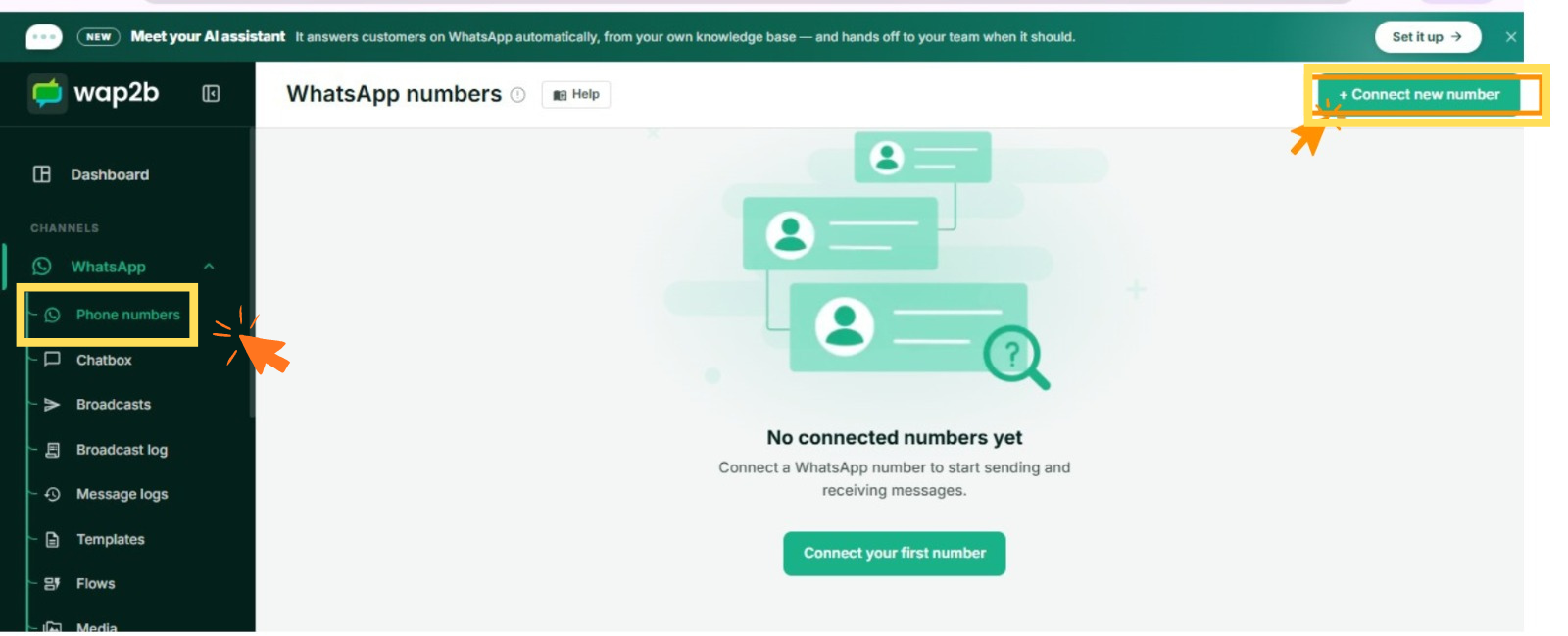
Either button starts the same flow. -
Before Meta opens, Wap2b asks you to confirm one choice: tick I'll create a new WhatsApp Business Account.
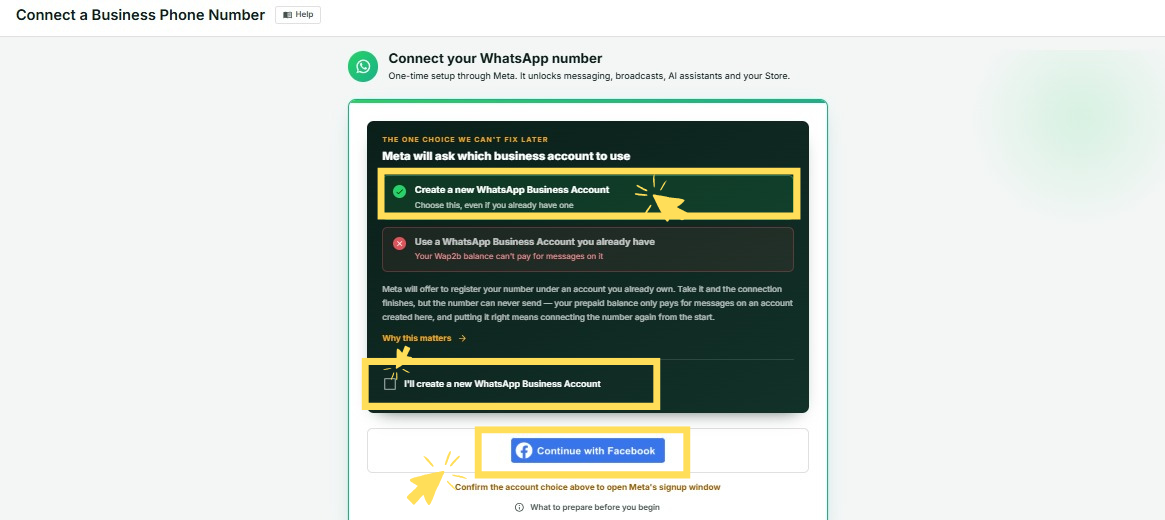
Tick this even if you already have a WhatsApp Business Account. Yes, a new account — even on this path
Your app and your chats are not affected by this. A WhatsApp Business Account is Meta's billing container, not the app on your phone, and your prepaid Wap2b balance can only pay for messages on one that is created during this flow.
If you let Meta register the number under an account you already own, the connection still finishes — and the number can never send. There is no repair for it afterwards. The number has to be connected again from the start.
-
Click Continue with Facebook. Meta's secure signup window opens in front of Wap2b.
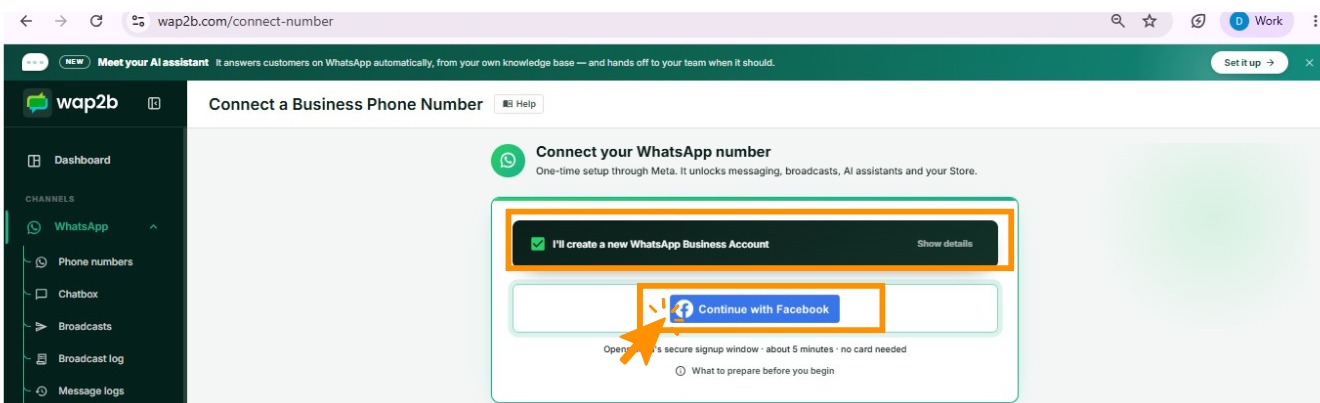
Everything from here happens on Meta's screens, not ours. -
Log in to your Facebook account.
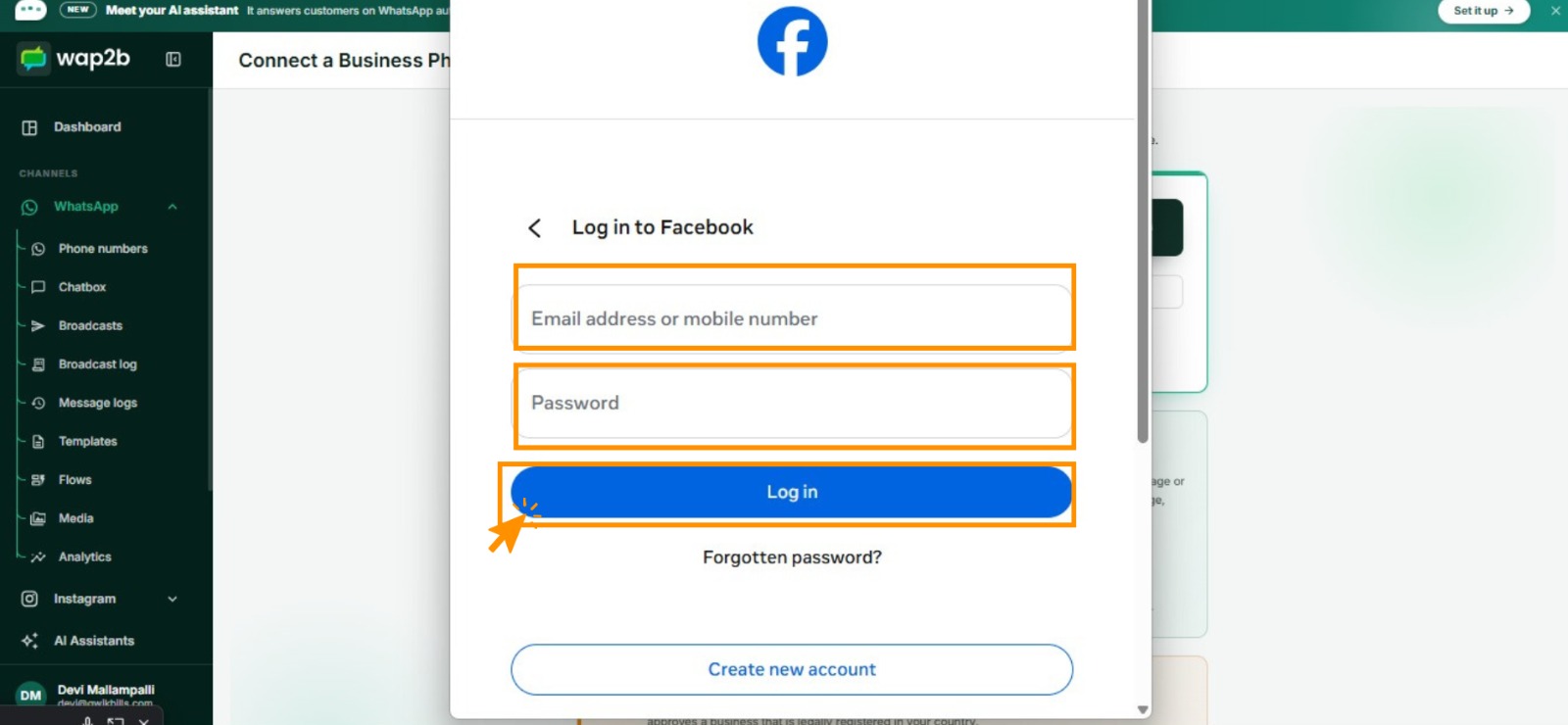
Use the profile that administers your business, not a personal side account. -
Meta introduces the setup. Click Continue.
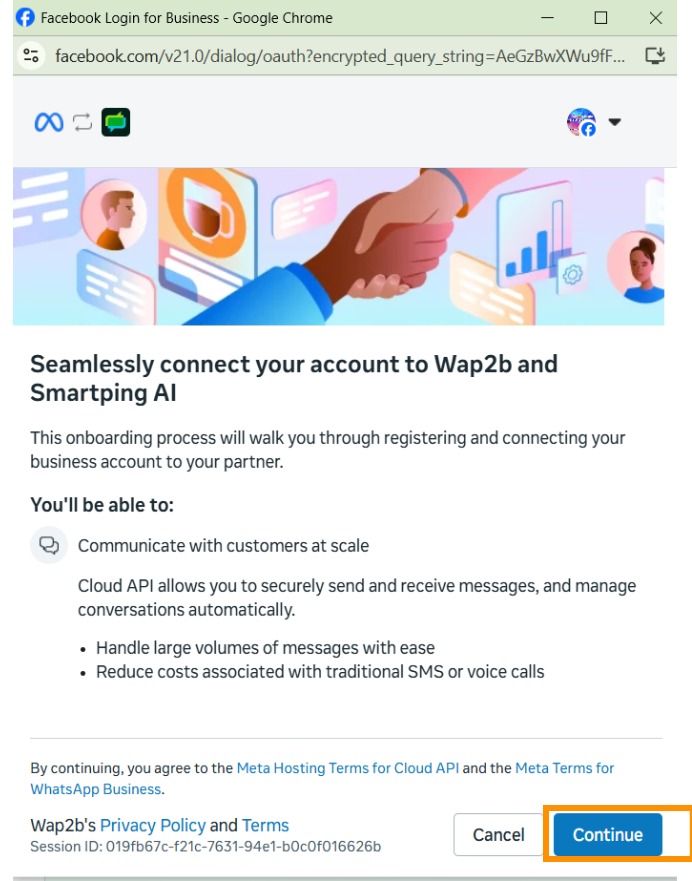
Smartping AI is our messaging partner — see the note at the end of this page. -
Complete your business profile: your business name, country and website, then Next. The website has to be live and show what you sell.
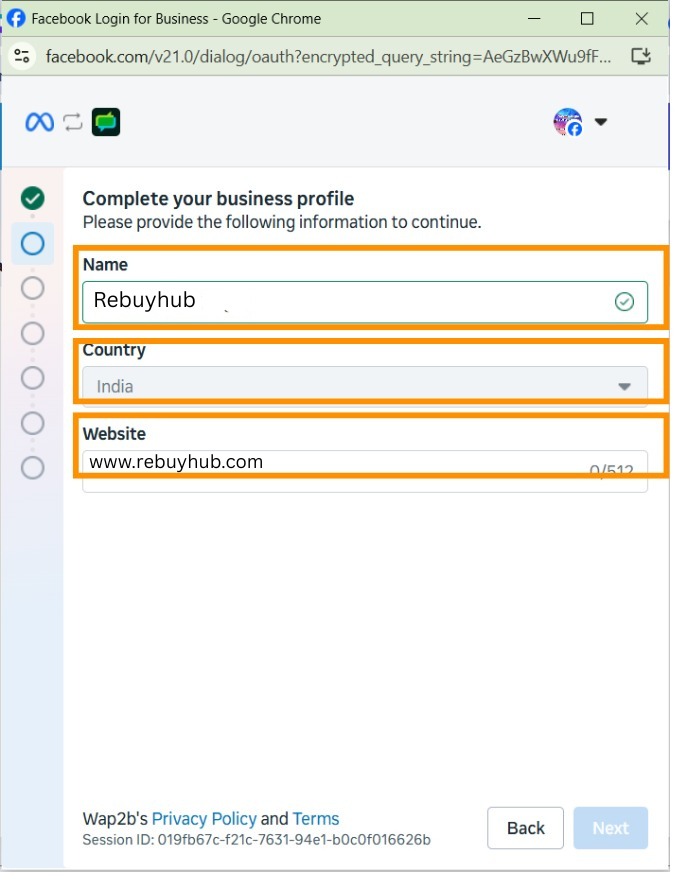
Use your registered or trading name here, not a slogan. -
Select the business assets to share. Pick your business portfolio, then open the WhatsApp Business account dropdown and choose Connect a WhatsApp Business app.
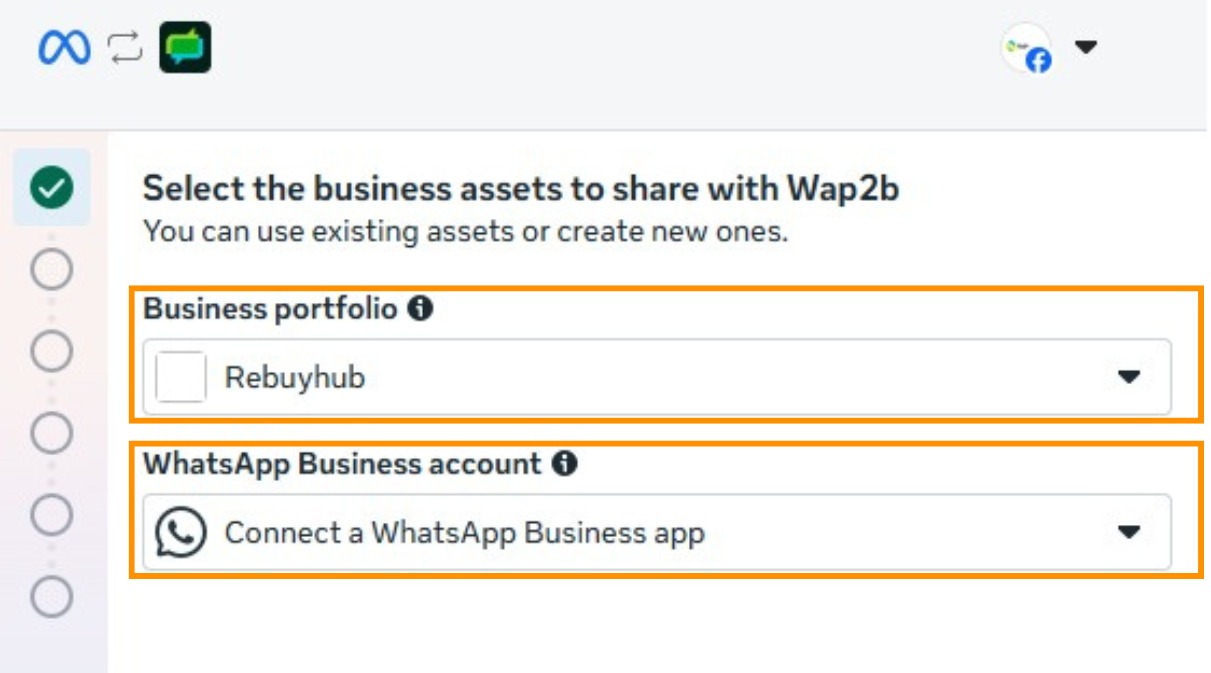
This is the choice that makes it a WhatsApp Business App connection. This is the step that decides everything
Connect a WhatsApp Business app is what keeps the app on your phone alive. If you pick an existing WhatsApp Business Account from this list instead, you get the outcome described in step 3 — a number that connects and then cannot send.
-
Meta explains what gets shared: your business profile, contacts, and the last six months of chat history. You keep full access to the WhatsApp Business App throughout. Read it and click Next.
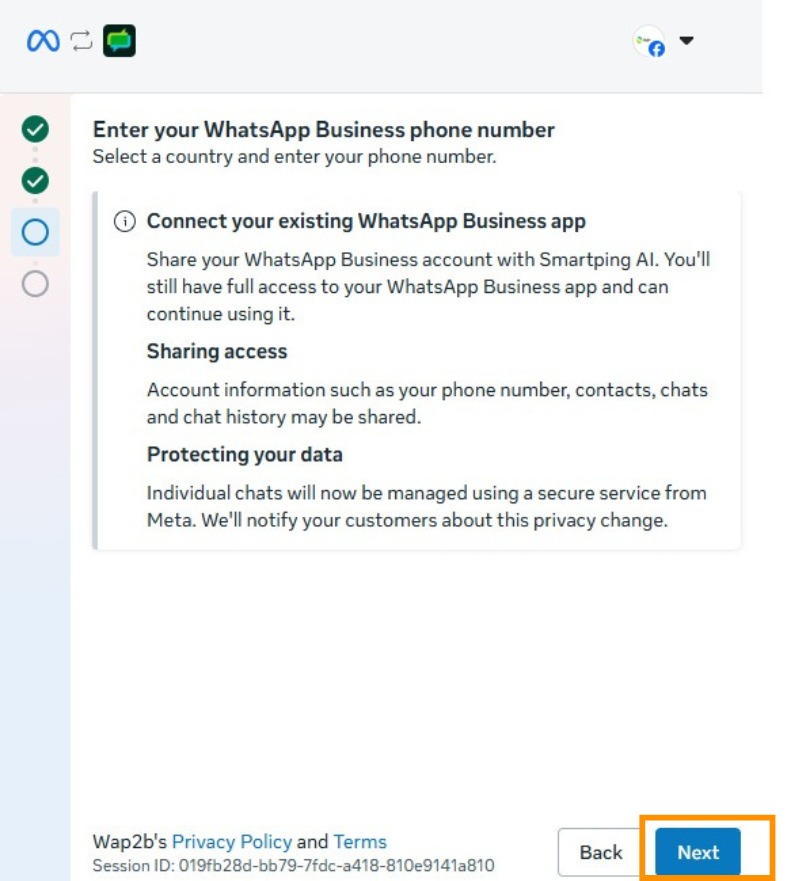
Meta also tells your customers about the privacy change. You do not have to. -
Enter the phone number. The country box defaults to US +1 — change it to your own country first, then type the number without the country code.
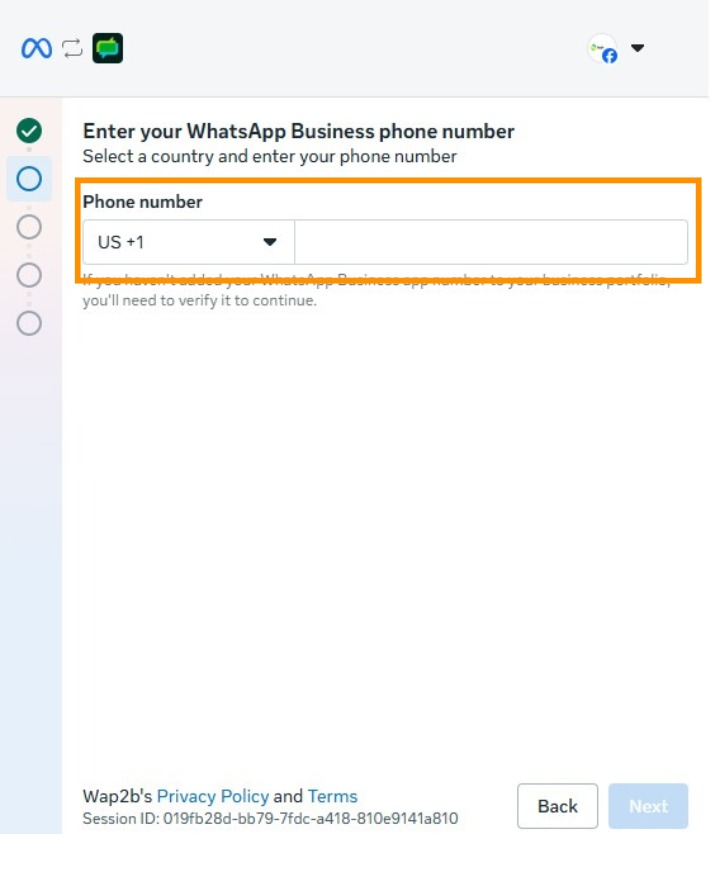
Changing the country first saves a rejected number. 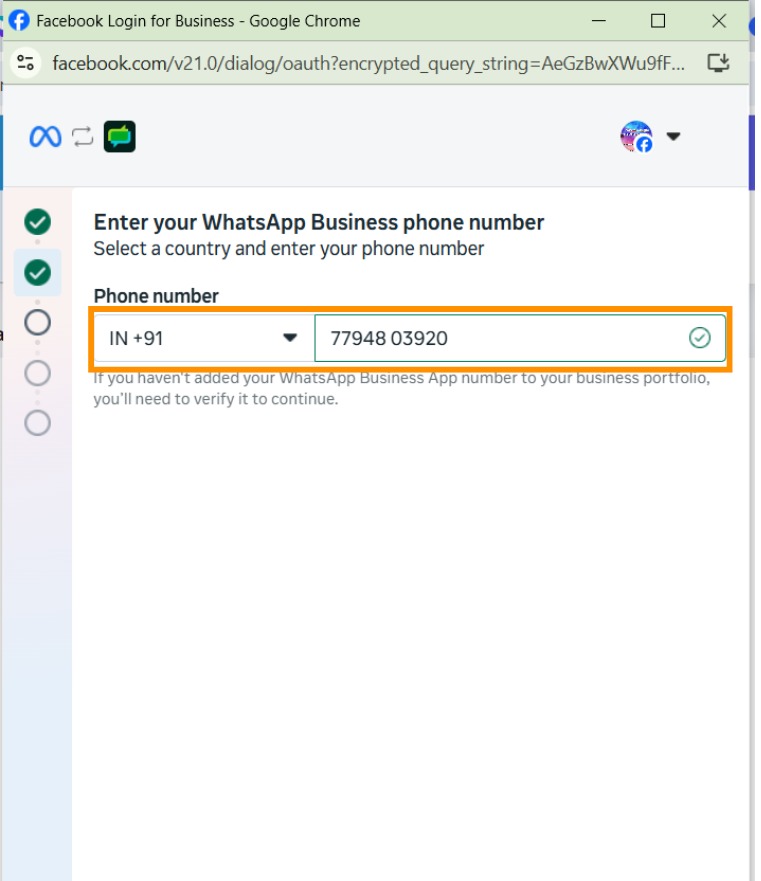
A green tick means Meta accepted the format. Click Next. -
Meta sends a code inside WhatsApp — not by SMS. Open the WhatsApp Business App on the handset, read the code, type it in and click Continue.
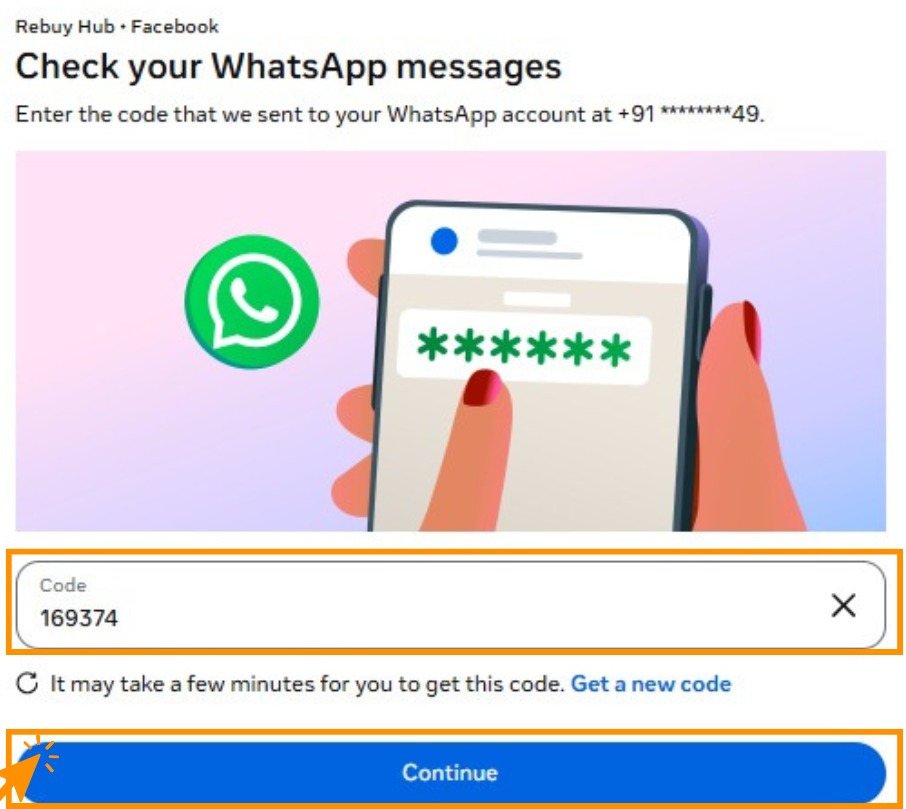
It can take a couple of minutes. Get a new code resends it. -
Scan the QR code with the WhatsApp Business App to bring your contacts and chat history across. On the handset, look for a message from the official Facebook Business Account and tap Connect. If it is not there, tap Menu or Settings → Account → Business Platform.
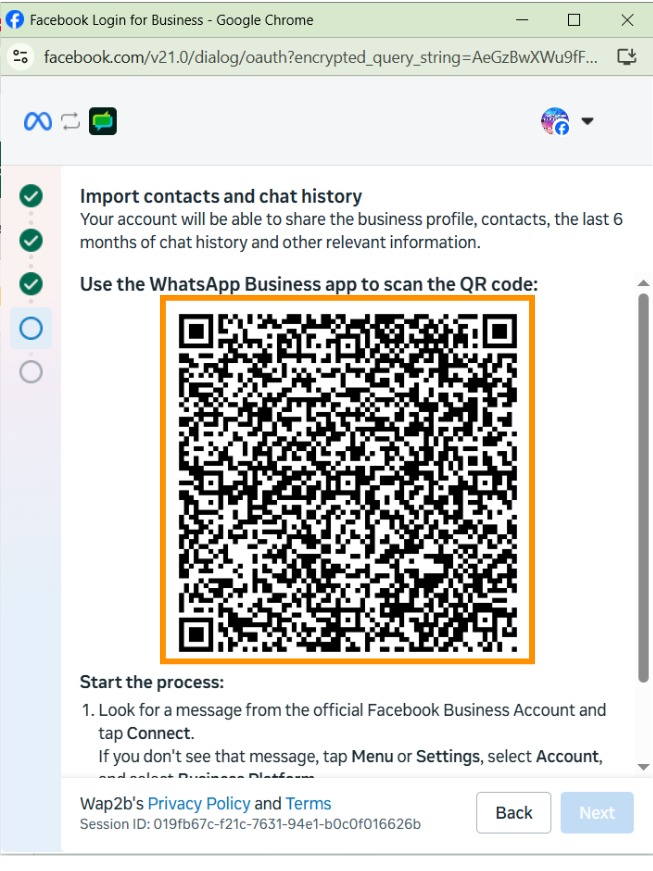
Six months of history comes across. Older chats stay on the phone only. -
Confirm the account name and time zone, then Next. Read the callout below before you click.
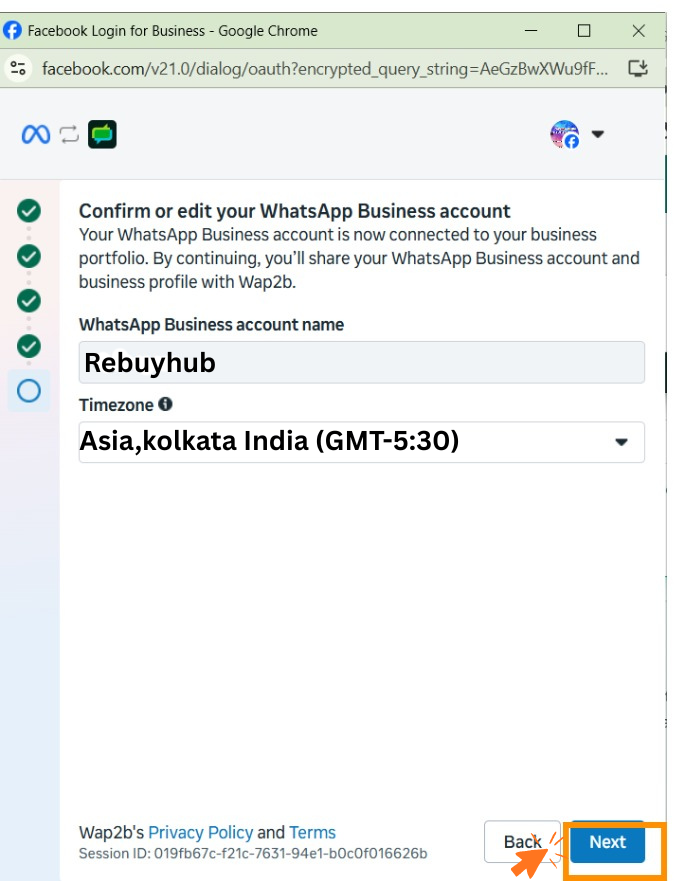
The time zone box is the one field on this screen that can stop the number sending. Set the time zone properly here
Pick the time zone your business actually operates in. If it is left blank or wrong, Meta blocks the number with "A timezone must be set before sending out messages" — the number connects, appears in Wap2b, and never sends a thing.
We cannot set this for you from Wap2b, and it becomes locked once your payment method is in place. Fixing it later means going into Meta Business Settings yourself: WhatsApp Accounts → your account → Time zone. Far easier to get right now.
-
Review what you'll share with Wap2b and click Confirm. This grants Wap2b the access it needs to manage the account and send on your behalf.

The last screen. Confirm closes Meta's window. -
Meta's window closes and returns you to Wap2b. Your number appears under Phone numbers.
What changes on your phone
Nothing stops working. Specifically:
- The WhatsApp Business App keeps running on the same number. Carry on using it.
- Replies sync both ways. A conversation answered in Wap2b shows in the app, and one answered in the app shows in Wap2b.
- Six months of history and your contacts come across during setup. Anything older stays on the handset only.
- Meta notifies your customers that chats are now handled through a business service. That message comes from WhatsApp, not from you.
What you will see in Meta afterwards
To send on WhatsApp, Meta requires a payment method on the account. Wap2b sets one up for you automatically, through our messaging partner, in the minutes after you connect. You do nothing.
In Meta Business Manager, under Payment method, you will therefore see an entry naming our messaging partner rather than your own business. That is expected and correct — it is how your messages are paid for on Meta's side.
You never add a card to Meta
You are only ever billed by Wap2b, from your prepaid balance. If anything suggests adding your own card or bank details in Meta Business Manager, you do not need to — and you should not.
Connected is not the same as ready to send
A number can show as connected and still be unable to send a single message. Sending needs three things, and the steps above only deliver the first:
- The number is connected to Meta. ✅ done above.
- The payment method is set up on the account. This happens automatically within a few minutes, but it is a separate step and it can fail — most often because of the time zone in step 13.
- You have funds in your Wap2b balance. See Add funds.
Check the status on Phone numbers. If the number is not yet able to send, it says so there.
If something goes wrong
- The number connected but cannot send. Check the time zone first — Meta Business Settings → WhatsApp Accounts → your account → Time zone. If it is blank, set it. If it is already correct and the number still cannot send after an hour, open a ticket.
- No code arrived. It comes inside WhatsApp, not by SMS. Check the WhatsApp Business App on the handset, including the archived and message-request lists, then use Get a new code.
- The QR code will not scan. On the handset tap Menu or Settings → Account → Business Platform and start the connection from there instead of waiting for the message from the Facebook Business Account.
- Meta rejected your business name or website. The name must reflect the business and the site has to be live and show what you sell. Try your registered or trading name.
- "You do not have permission for this business." You are not an admin of the Meta business. Whoever owns it must make you one, or run the flow themselves.
- The Facebook window closed or errored partway. Nothing is saved halfway. Start again from Connect a number — repeating the flow is safe.
- You picked an existing WhatsApp Business Account by mistake. Nothing can be repaired after the fact. Run the flow again from the start and take the Connect a WhatsApp Business app option at step 8.
Next
Add funds to your balance — a connected number still needs credit before it can send.