
Import from a spreadsheet
The way to load a real customer list. Excel (.xlsx) or CSV (.csv), up to 2,000
contacts per file.
Before you start
Create your groups first. The import puts contacts into groups — it never creates them. A row naming a group you have not made yet is rejected, and the rest of the file still imports without it. See Organise with groups and subgroups.
Then download the template workbook. It is offered in the import dialog, and it is not just a column guide — it is generated for your account and includes a Your groups sheet listing your exact group and subgroup names. Copy from that sheet rather than typing names from memory.
Steps
-
In the sidebar, open WhatsApp toolkit → Audience → Contacts.
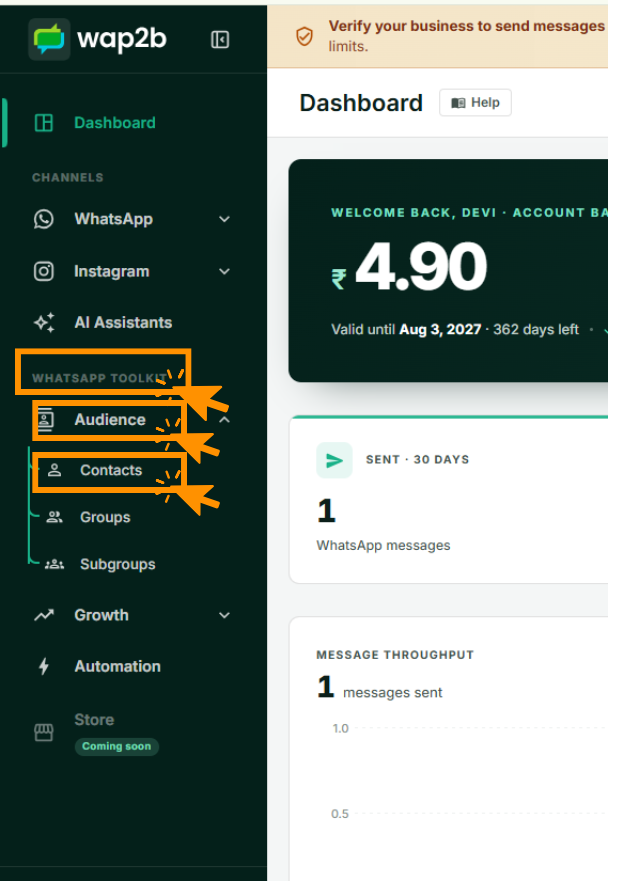
Groups and Subgroups sit under the same Audience heading. -
Click Import at the top right.

Export beside it downloads your current list in the same column format. -
Click Download template.
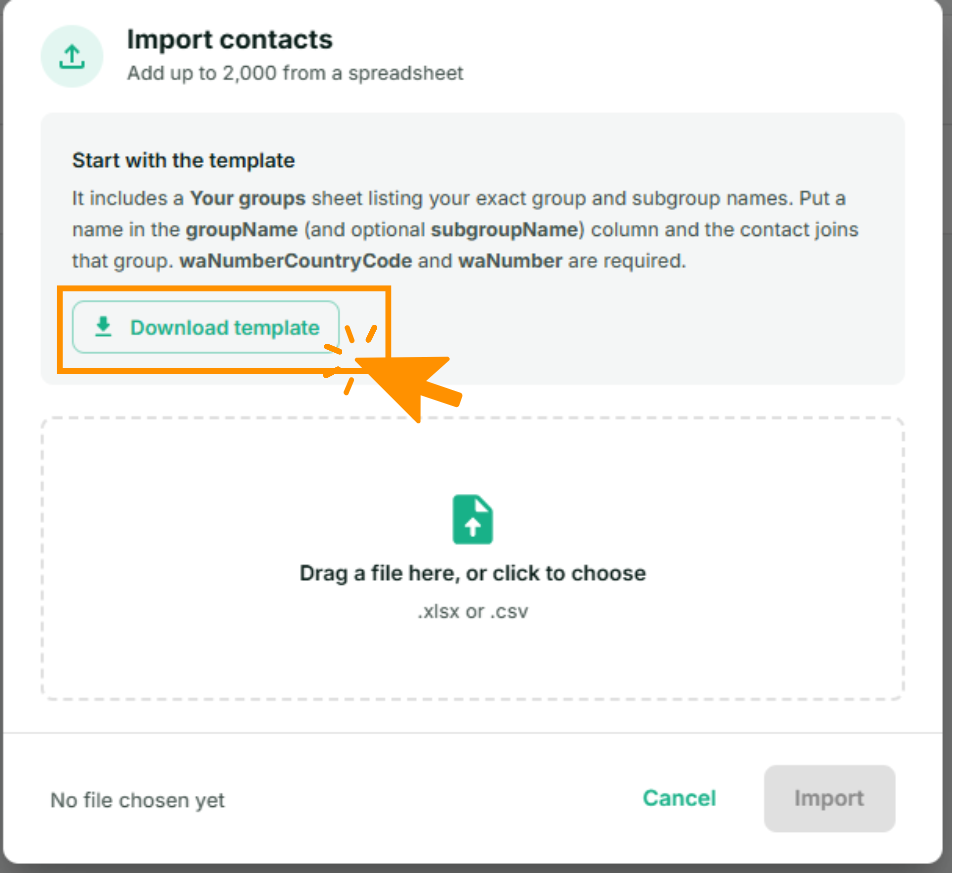
The template has one sheet, Contacts, with an example row to replace. -
Fill it in, one contact per row.
waNumberCountryCodeandwaNumberare required; everything else is optional. -
Save it as
.xlsxor.csv. The file must have only one sheet. A file with more sheets, hidden ones included, is not accepted. -
Drag the file into the dialog, or click to browse.
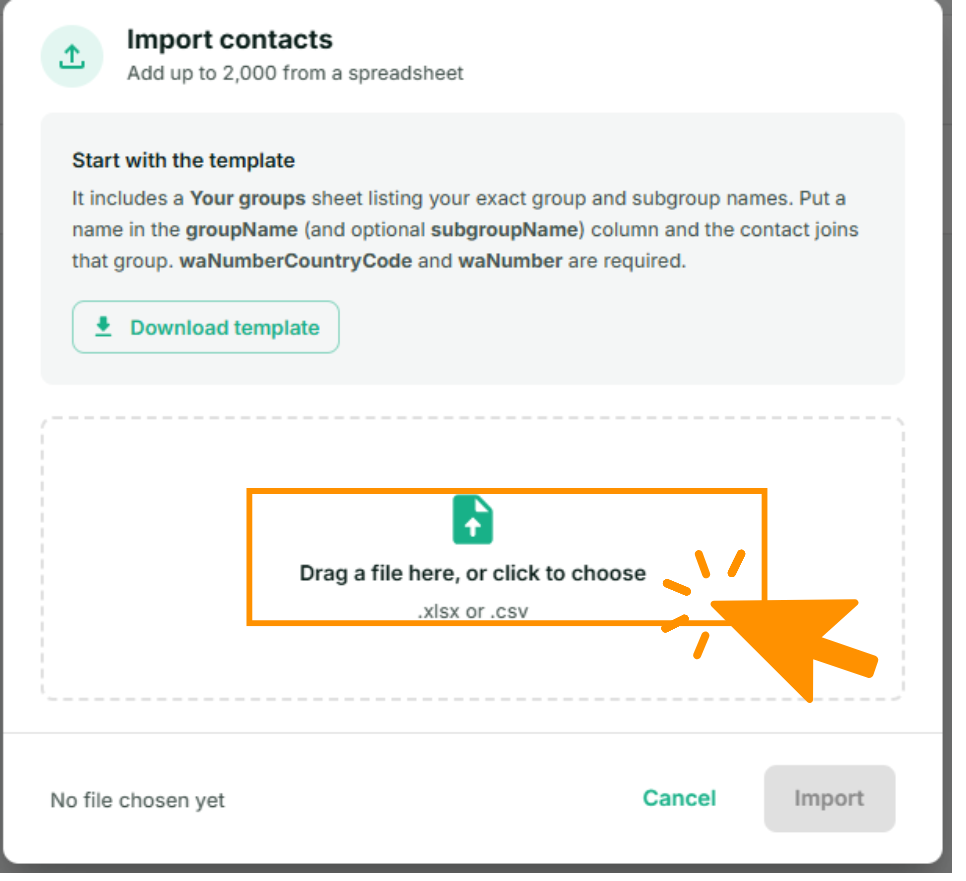
One file at a time. If you clicked to browse, select the file and click Open.
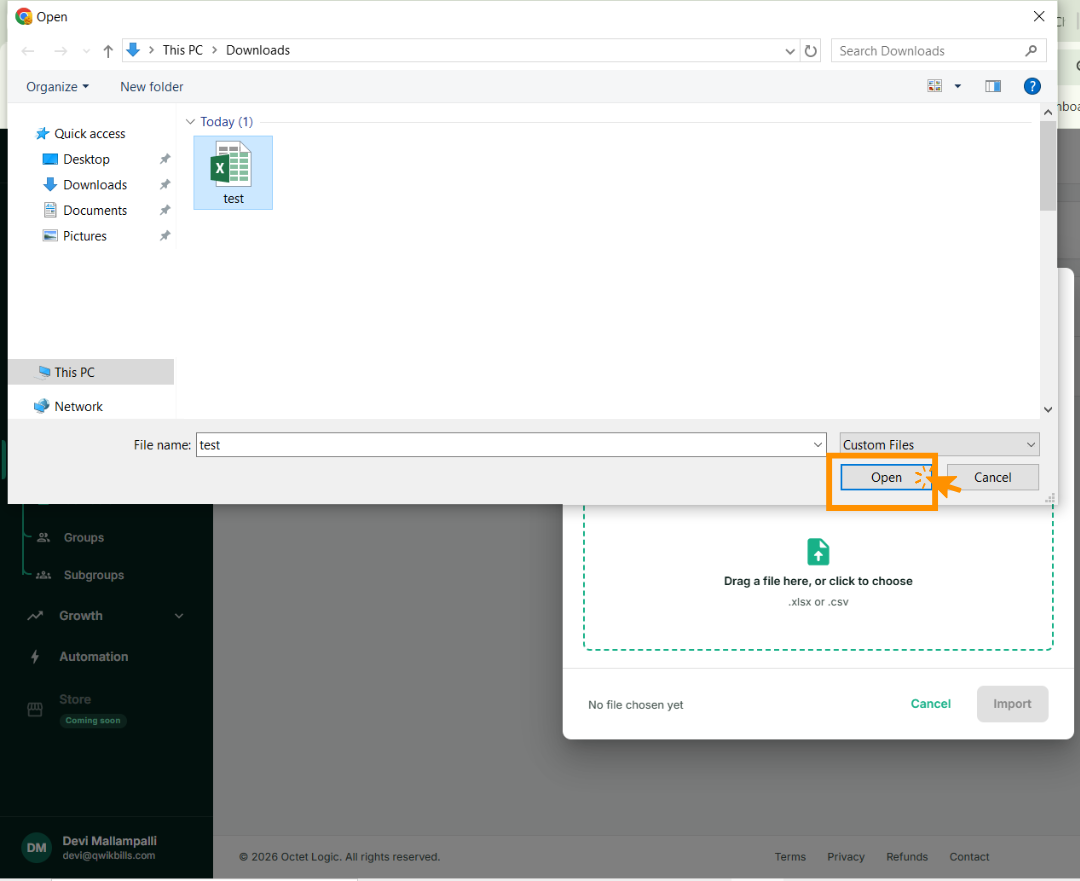
The picker only offers .xlsx and .csv — an .xls saved by an older Excel will not appear. -
Wap2b checks the file in your browser, before anything is saved, and tells you how many rows are ready and how many are blocked — with a reason for each blocked row.
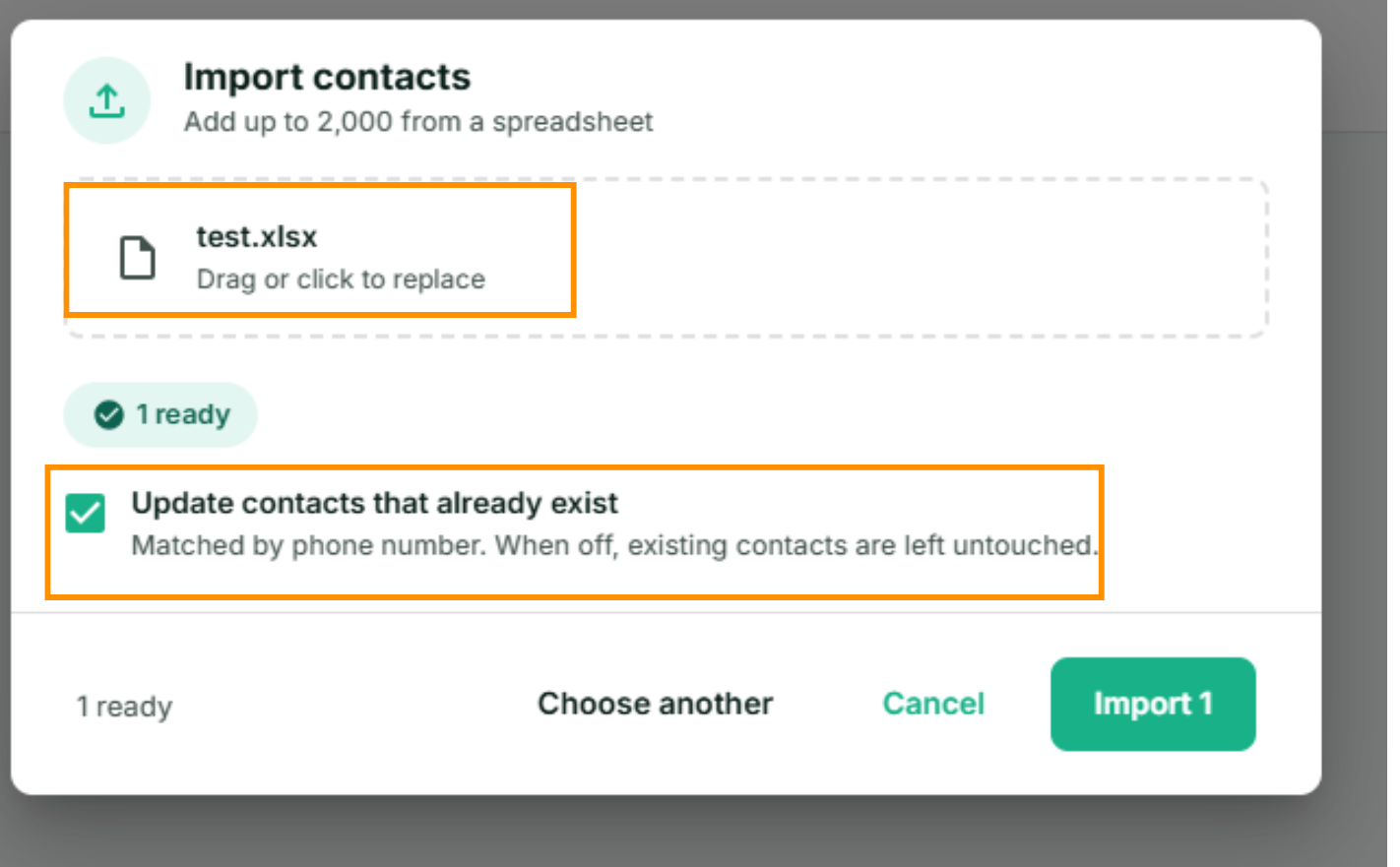
Nothing has been written yet at this point. Cancel here and your list is untouched. -
Decide whether to tick Update contacts that already exist:
- Ticked — a row whose number is already in your list updates that contact with the cells you filled in. Use this when the spreadsheet is more current than Wap2b.
- Unticked — existing contacts are left alone and only genuinely new numbers are added. Safer if you are unsure.
-
Click Import. The button counts what it is about to do — Import 340, not just Import.
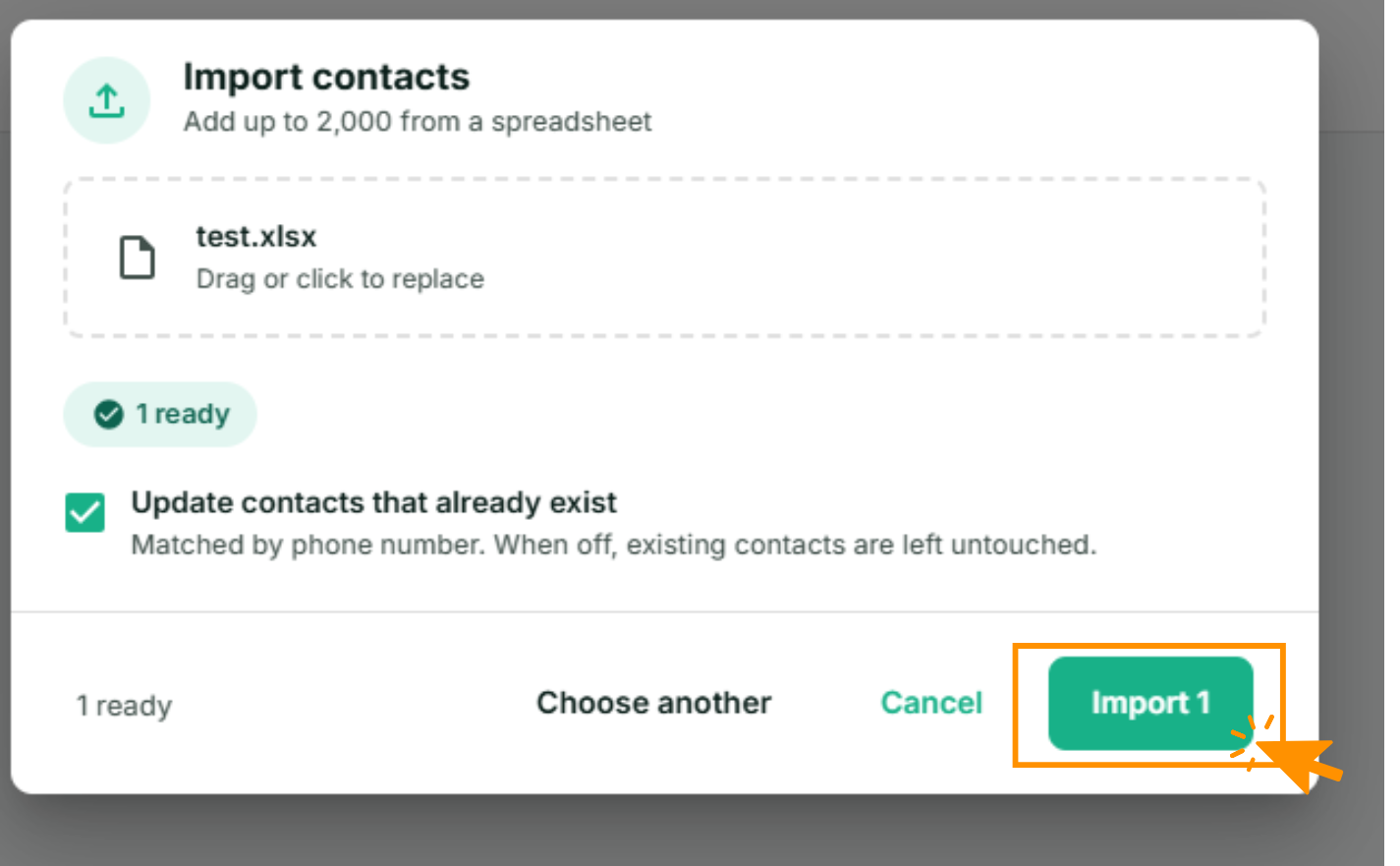
Blocked rows are not included in that count and are not imported.
The new contacts are in your list straight away.

What each column expects
| Column | Required | What goes in it |
|---|---|---|
waNumberCountryCode | Yes | Dial code, digits only, no + — e.g. 91 |
waNumber | Yes | The number without the country code and without a leading zero |
firstName | No | Up to 100 characters |
lastName | No | Up to 100 characters |
email | No | Must look like an email, or the row is blocked |
groupName | No | Must already exist in your account |
subgroupName | No | Must belong to the group named on the same row |
Numbers are checked against each country's own rules, not just their length — an Indian number must be a valid 10-digit mobile number, not any ten digits.
Limits worth knowing before you build the file
These are the things that surprise people. None of them fail loudly in Excel.
- 2,000 rows per file. If the sheet holds more, Wap2b reads the first 2,000 and tells you it did — the rest are ignored, not queued. Split a bigger list into several files and import them one after another; there is no cap on how many times you import.
- Only the first sheet is read. The template already has Contacts first. If you build your own workbook, put the data on sheet one — a second sheet is never opened.
.xlsxand.csvonly. The old.xlsformat is not accepted. In Excel, use Save As → Excel Workbook (.xlsx).- Header names must match exactly, including capitals.
waNumberworks;WaNumberandwanumberdo not — that column is simply not seen. Column order does not matter, and extra columns of your own are ignored, so you can keep notes in the file. - The import never creates a group or a subgroup. Unknown names block the row.
- A subgroup needs its group. Filling
subgroupNamewhile leavinggroupNameblank blocks the row. - Only the seven columns above are read. There is no column for the reference field, and none for opt-in status. Set those by editing the contact afterwards.
- Editing an export and re-importing works — but not every column survives.
Export names its columns the same way on purpose, so the round trip is a
legitimate way to bulk-edit. It carries extra columns for your reference —
altPhone,city,state,pincode,optedIn,optedInAt,createdAtandadditionalGroups— and the import ignores all of them. Editing those cells and re-importing changes nothing, silently. - Everyone you import is marked opted in. Only import people who have actually agreed to hear from you on WhatsApp — see Who you're allowed to message. Updating an existing contact never changes their opt-in status, so re-importing neither opts someone back in nor opts them out.
- Blank cells never overwrite. When updating, an empty cell leaves the existing value alone rather than clearing it. The flip side: you cannot empty a field or remove someone from a group by importing a blank — do that from Contacts.
- Duplicate numbers within one file: the first row wins, the later ones are ignored and counted for you.
- Re-importing a number you deleted restores that contact, if Update contacts that already exist is ticked.
Group and subgroup names are matched ignoring capitals and surrounding spaces, so
vip customers still finds VIP Customers. Everything else about the name must
match, so copy the name from Contacts rather than retyping it. A name you
do not have yet is not an error: the import offers to create that group for you.
Check a small file first
Import ten rows before you import two thousand. If the format is wrong, you would rather find out on ten.
Reading the check report
Blocked rows are listed one by one, with the sheet's own row number so you can go straight to it. The ones you will actually see:
| Message | What it means |
|---|---|
Row 12: invalid phone number (+91 09154091982) | A leading zero, the country code typed into the number column, or a number that is not valid for that country |
Row 12: invalid email (asha@) | The email cell is not a usable address. Clear it if you do not have one |
This file has 3 sheets: … | The file must have only one sheet. Delete the others (unhide any hidden ones first) and upload again |
Row 12: subgroup "Delhi" isn't in group "Leads" | The subgroup exists, but under a different group |
Row 12: subgroup "Delhi" needs a group name | subgroupName filled in, groupName left blank |
3 duplicate numbers within the sheet were ignored | The same number appears more than once. The first one was used |
The sheet has 3,400 rows — only the first 2,000 are read | Split the file |
A number that is already in your list is not an error and is not reported here — it is quietly updated or skipped, depending on the checkbox.
Valid rows still import. Fix the blocked ones in the spreadsheet and import that smaller file again — it does not duplicate the rows that already went in.
If something goes wrong
- "The sheet is empty" or no rows found. The data is on the second sheet, or the header row was renamed so no column is recognised. Start from a fresh copy of the template.
- Numbers imported with digits missing. Excel treated the column as a number and dropped the leading zero or applied scientific notation. Format the column as Text, re-paste, and import again.
- Fewer contacts than rows in the file. Check the totals in the message you got — duplicates within the sheet and numbers already in your list both reduce the count without being errors.
- Contacts imported but are in no group. The
groupNamecolumn was empty. You can assign them in bulk from Contacts. - Everything imported but nothing receives a broadcast. Broadcasts only go to opted-in contacts, and are capped per send — see Send your first broadcast.