
Build your first chatbot
A chatbot holds a whole conversation for you. It sends a menu, asks a question, remembers the answer, asks the next one, and hands the customer to your team or your AI assistant when it should. You draw it as boxes and lines on a canvas; your customer just sees an ordinary WhatsApp chat.
It sits between the two other ways Wap2b answers on its own:
- Instant Replies answer one question with one reply. No memory — every message is checked fresh.
- A chatbot remembers where each customer is. "Book a visit" → "What's your name?" → "Which branch?" is one chatbot.
- Your AI assistant answers anything you haven't scripted. A chatbot can hand over to your Support assistant at any point.
One charge per run
A chatbot is charged once per run — each time it starts with a customer — however many messages it sends in that run. See Pricing. Its messages count toward your number's free service messages for the month, like every reply; past them, each one is charged. The label at the top of the canvas shows what one run costs — click it for the breakdown.
Open Chatbots
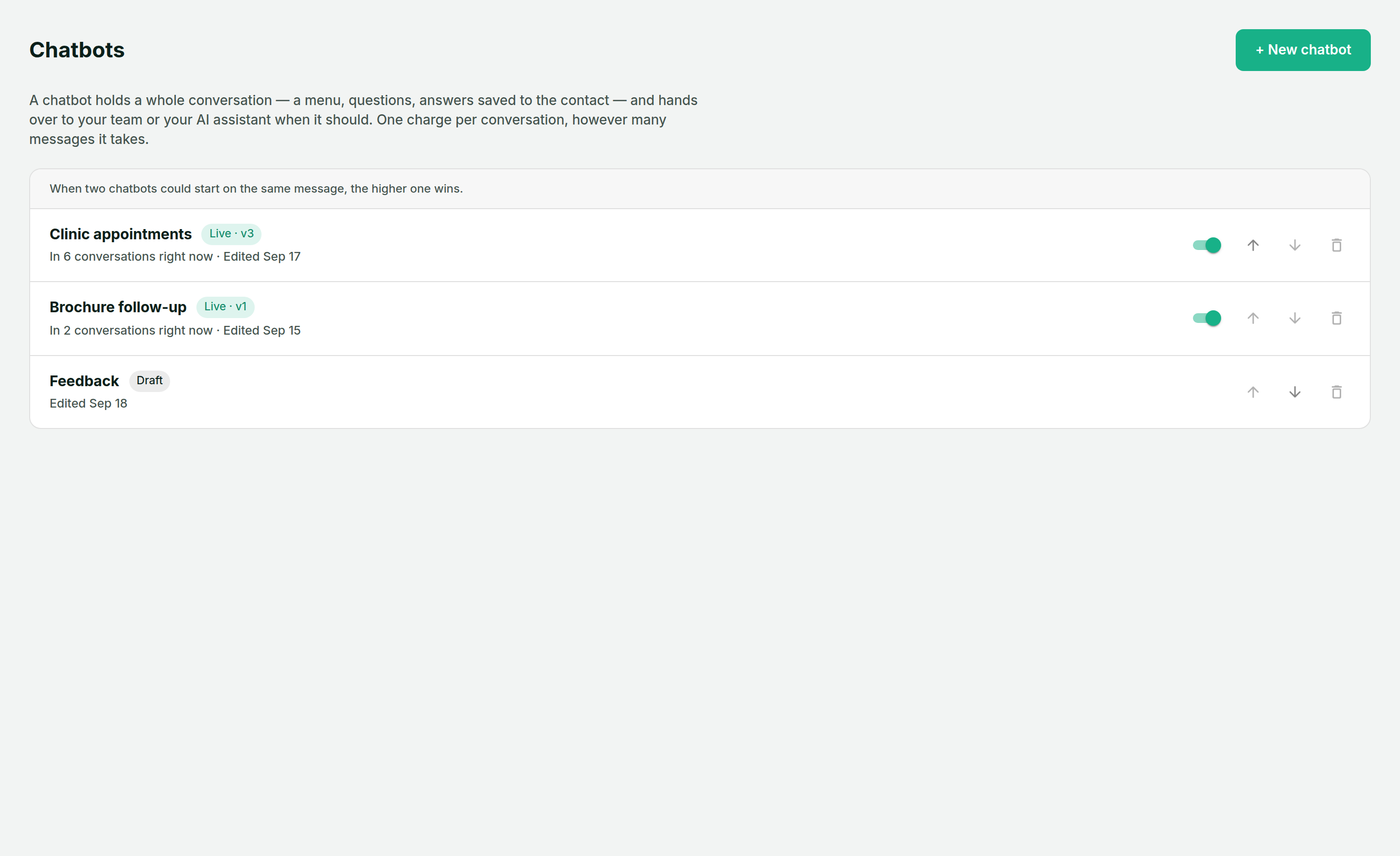
In the sidebar, under Automation, between Instant Replies and AI Assistants. Chatbots belong to one WhatsApp number; if you have more than one, pick the number at the top right. To move a chatbot to another number later, click the number under its name on the canvas.
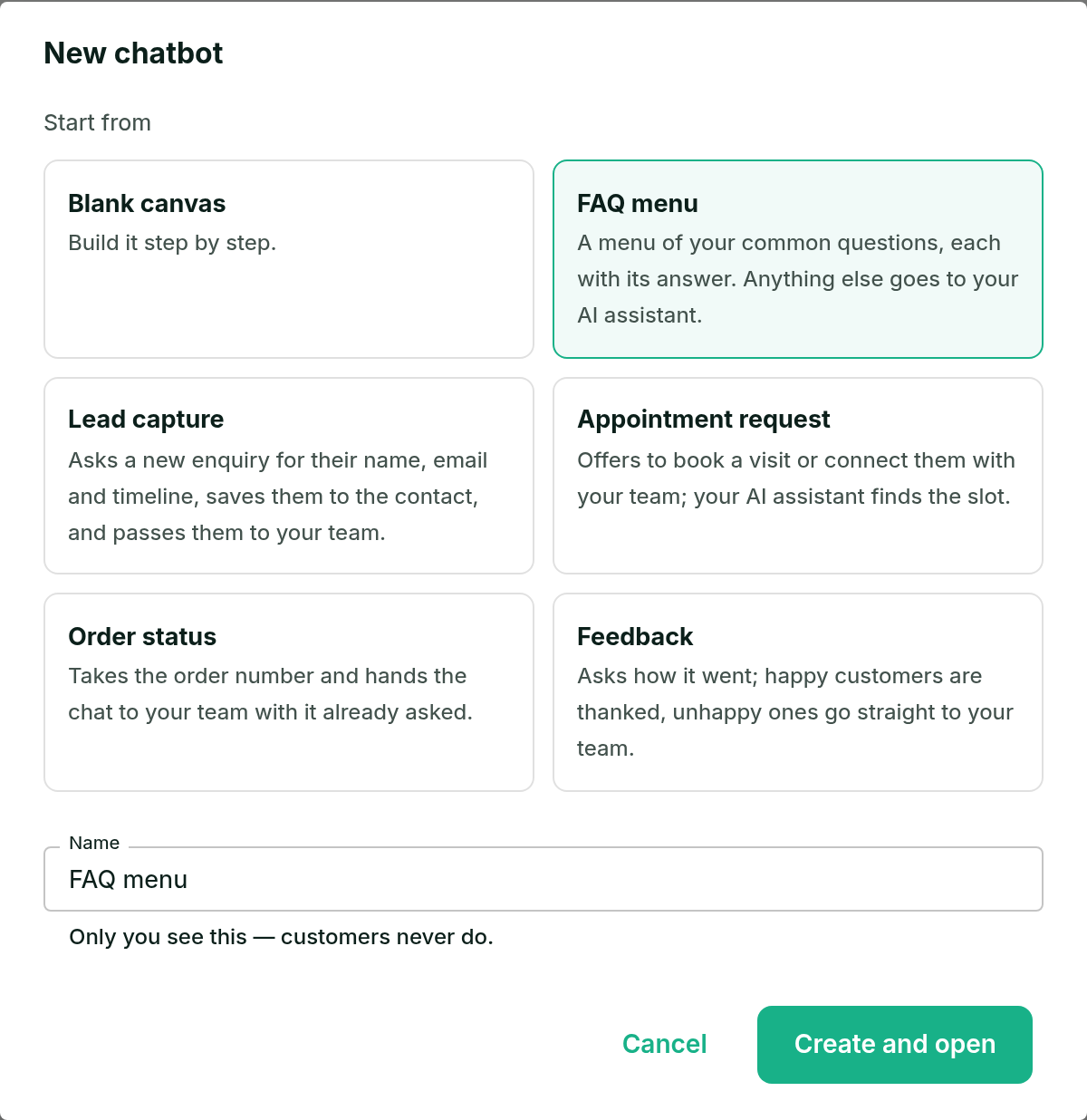
Start from a ready-made chatbot
Click + New chatbot. You can start from a blank canvas, but it's quicker to start from one of the ready-made ones and change the words — each one is complete and can be published the moment it opens.
The canvas
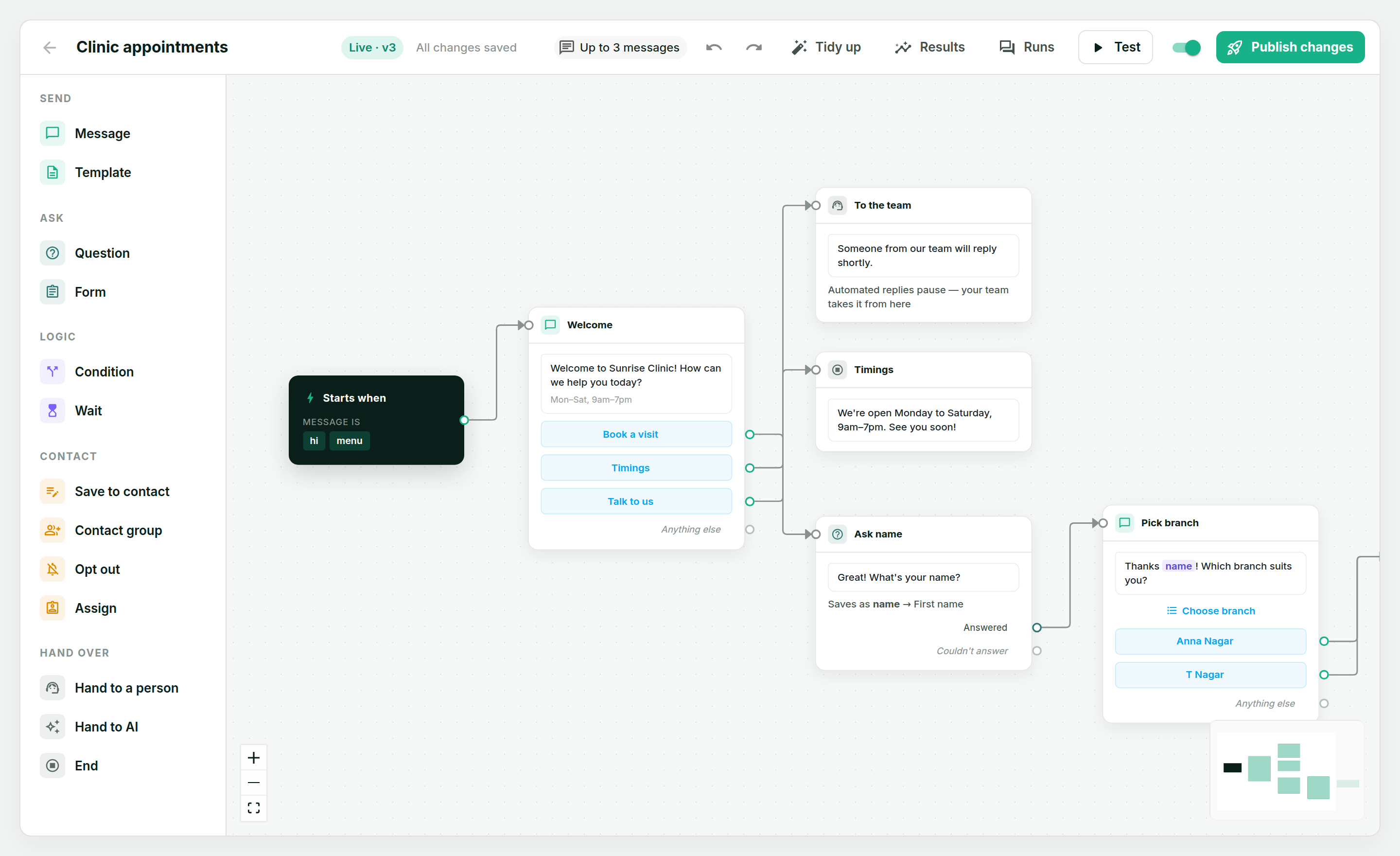
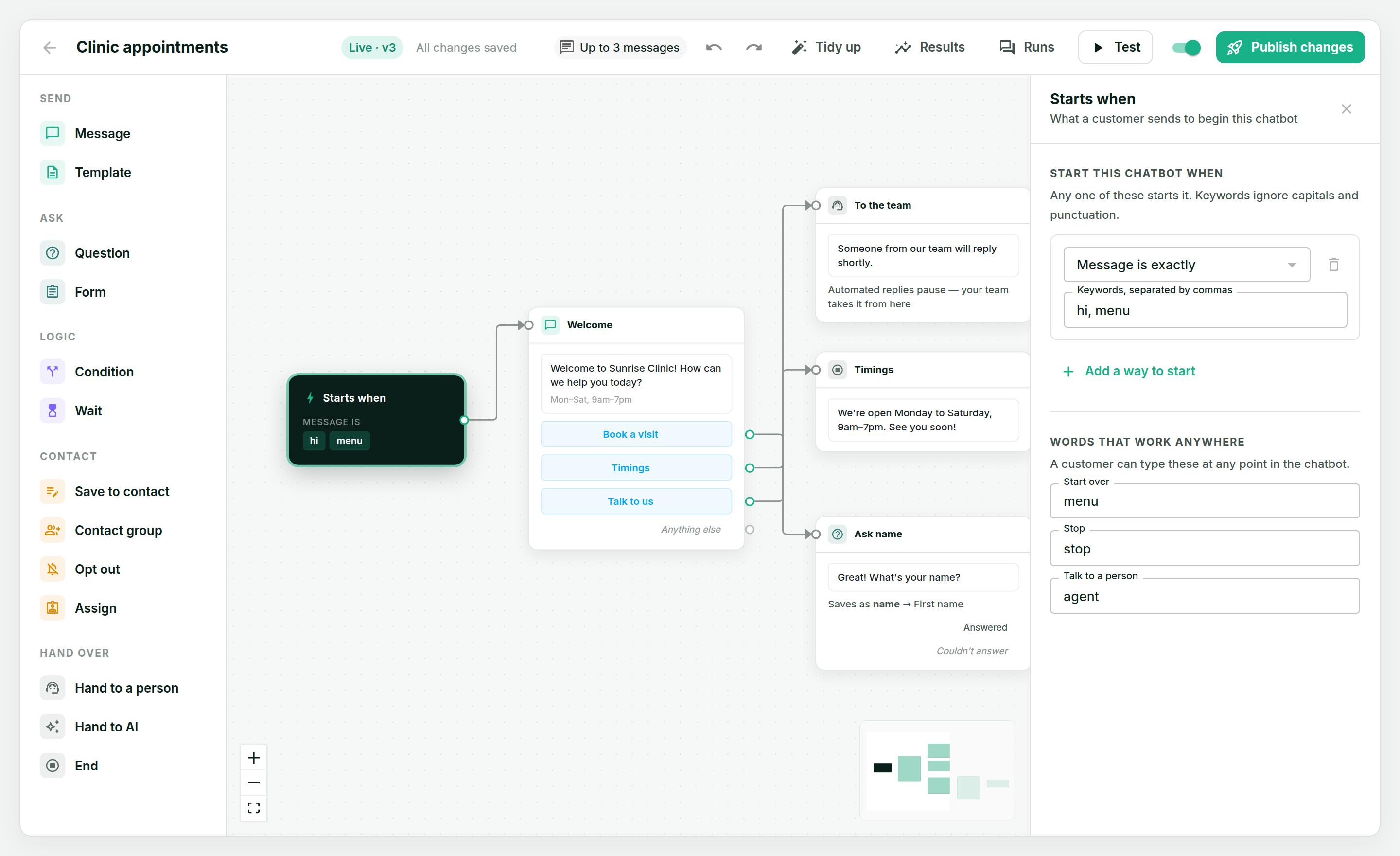
- The dark box, "Starts when", is what starts the chatbot — words a customer sends, the very first message they send you, any message at all, a click on one of your ads, or a reply to a campaign. Click it to change them. (While an AI assistant is on for the number, "any message" leaves those messages to the assistant.)
- Every other box is a step. A message box shows the message as a WhatsApp bubble, with its buttons underneath. Words in purple, like name, are filled in from an earlier answer.
- Lines go from the small circle on the right of a box to the next step. Drag from a circle to a box to draw one; click a line and press Delete to remove it.
Everything saves by itself as you work. Nothing reaches a customer until you press Publish.
Answer replies to a campaign
In the Starts when box, choose They replied to a template and pick the templates your campaign was sent with. The chatbot then answers customers who reply to that campaign: a tap on one of its buttons, or a message they type within 24 hours of it, as long as nothing else was sent to them in between. Replies like "thanks", "ok" and "stop" don't start it.
A number runs one chatbot at a time, and everything in the Starts when box leads to the same first step. So to give campaign replies their own answers, make that first step a Condition:
- Replied to template is your campaign's template → the campaign's own menu.
- Their first message contains
price, rate→ the price, straight away. Put this branch first, together with the template rule. - Otherwise → your usual welcome menu, for everyone who just said "hi".
A chatbot can't understand a typed question, so a menu of the questions people usually ask, one button each, is what works best, plus a Talk to a person button for everything else.
Add steps
Drag a step from the palette on the left onto the canvas, or click it to drop it in the middle. One chatbot holds up to 50 steps. If a conversation needs more branches than that, it has stopped being a script — hand the open-ended part to an AI assistant instead. The steps you can use:
| Step | What it does |
|---|---|
| Message | Text, a picture, video or document, and optionally up to 3 buttons or a list of up to 10 options |
| Template | An approved template — the only thing WhatsApp lets you send after 24 hours of silence |
| Question | Asks something and waits for a typed answer — any text, a number, an email or a phone number |
| Form | Sends one of your published WhatsApp Flows and waits for it to be submitted |
| Book appointment | Books a visit into your Appointments calendar: the customer picks a day and time from your open slots — see below |
| Condition | Goes one way or another: by an answer, a contact field, a group, whether you're open, or the message that started the chatbot and the template it replied to |
| Wait | Pauses before the next step — see Waits and follow-ups |
| Save to contact | Writes a value onto the contact |
| Contact group | Adds the contact to a group, or takes them out — handy for a broadcast later |
| Opt out | Stops marketing messages to this contact |
| Assign | Gives the chat to someone on your team, and carries on |
| Hand to a person | Ends the chatbot; automated replies pause so your team can take over |
| Hand to AI | Ends the chatbot; your Support assistant answers from here |
| End | Ends the chatbot, with an optional last message |
Book appointments
The Book appointment step takes a booking from start to finish without an AI assistant. The customer taps through lists built from your real calendar:
- Department, service and who they'd like to see (or "Any available"). Any of these with only one option is skipped.
- Day, from the days that have open times over the next two weeks.
- Time on that day.
- Name, only if the contact doesn't have one (or always, if you choose, for people booking for family).
- Confirm. The appointment goes into your calendar and they get a confirmation and a check-in QR code.
The step has two lines out: Booked, and Not booked for when nothing is open, the booking is
refused (the same per-customer limits as every other booking), or they stop choosing. Point Not
booked at a Hand to a person step so nobody is left waiting. After booking, later steps can
use {{answers.appointment_date}}, {{answers.appointment_time}}, {{answers.appointment_with}}
and {{answers.appointment_code}}.
Set up your services, the people who offer them and their working hours in Appointments first. Until then the step says nothing and takes Not booked.
Edit a step
Click any box to open its settings on the right.
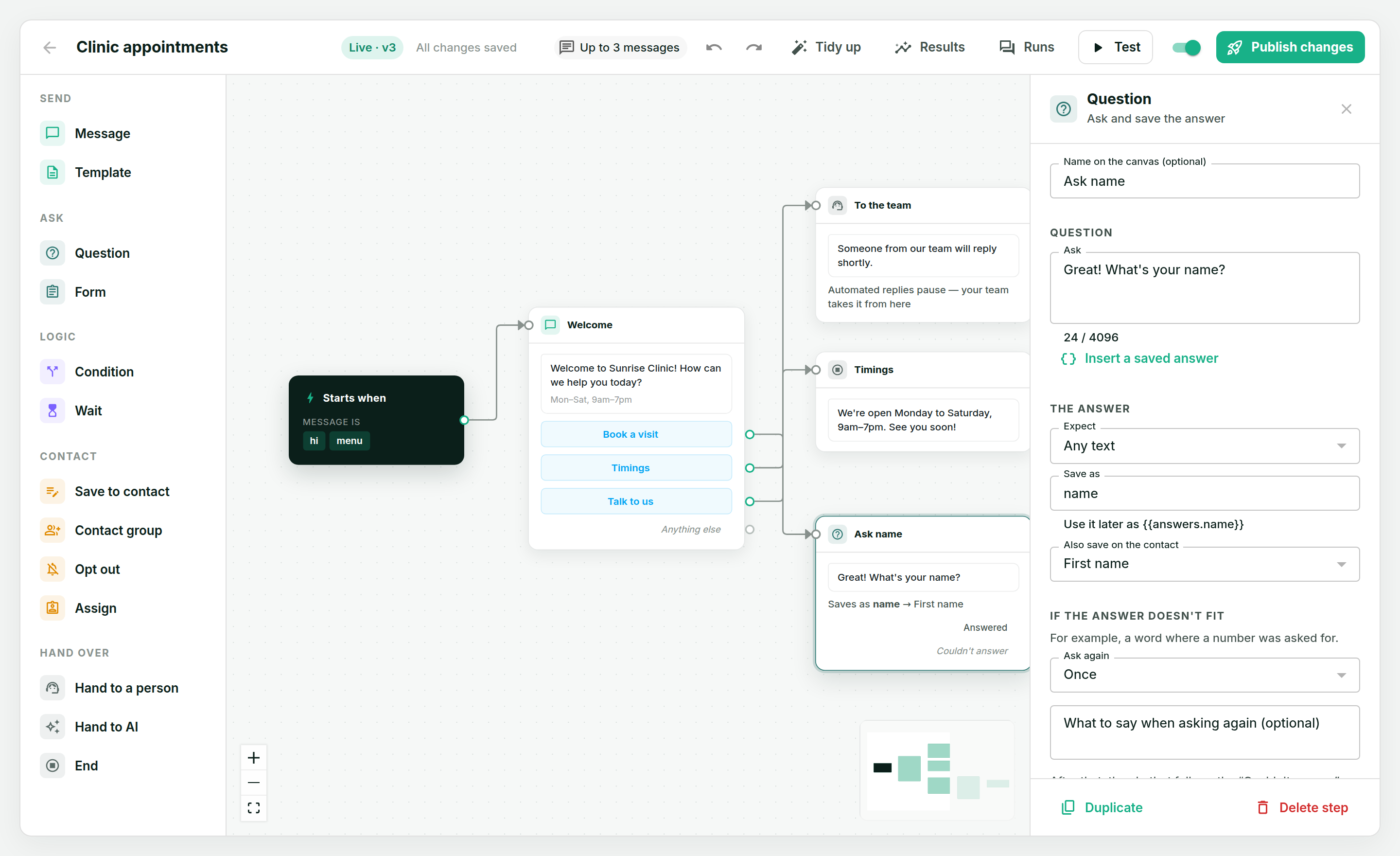
To use an earlier answer in a message, click Insert a saved answer under the text. If the
customer's first name is saved, Thanks {{answers.name}}! arrives as "Thanks Priya!".
Customers often type instead of tapping a button. On a message with buttons or a list, If they type something else decides what happens: ask again (up to three times, with your own words first), follow the Anything else line, let your AI assistant or Instant Replies answer, or ignore it and keep waiting. Pointing Anything else at a Hand to a person step is the safest choice for a menu.
A line to nowhere is fine
You don't have to connect everything. A button with no line leading from it simply ends the chatbot, and the customer's tap goes wherever it would have gone without one — your Instant Replies, then your AI assistant. If this number has neither, nobody answers it, so give every button somewhere to go.
The End step is different: it's you deciding the conversation is over, so nothing else answers that message.
Words that work anywhere
Click "Starts when" to see them. A customer who types menu starts again, stop ends the chatbot, and agent hands them to your team — from any step. You can change the words.
Chatbots and Instant Replies
A number is answered by one chatbot at a time, so two never compete. A chatbot does go before your Instant Replies, and both go before your AI assistant. So while a chatbot is live, an Instant Reply only answers messages the chatbot doesn't start on, and never while a customer is partway through it. A chatbot that starts on any message leaves your Instant Replies nothing to answer. Publish tells you when this applies.
Next: Test and publish a chatbot.