
See how your chatbot is doing
Once a chatbot has been published, the ⋮ menu at the top of its canvas has Show results on the canvas, for the numbers, and Runs, with one row for each time the chatbot started with a customer.
Results: where customers give up
Choose Show results on the canvas and every box shows its numbers for the last 30 days of the live version.
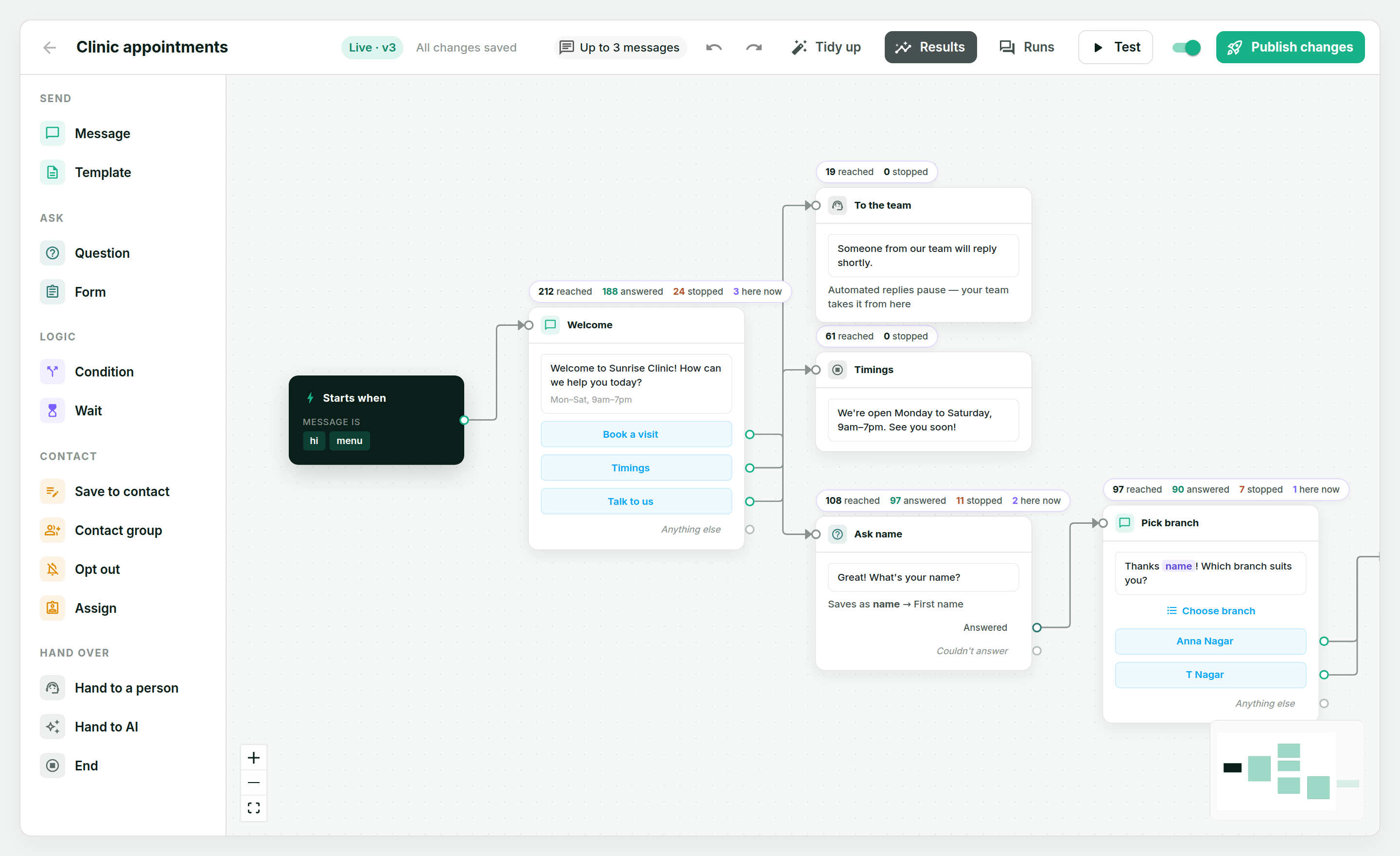
- reached — customers who got to this step;
- answered — of those, how many replied the way it asked (only on steps that ask something);
- stopped — runs that ended here without finishing: the customer went quiet, typed something else, or someone on your team took over;
- here now — runs waiting on this step right now.
Each run counts once per step, however many times it comes back to it.
Runs: every time it started
Choose Runs to see every run the chatbot has had, newest first, and how each one ended. Use In progress, Finished and Went quiet at the top to narrow the list.
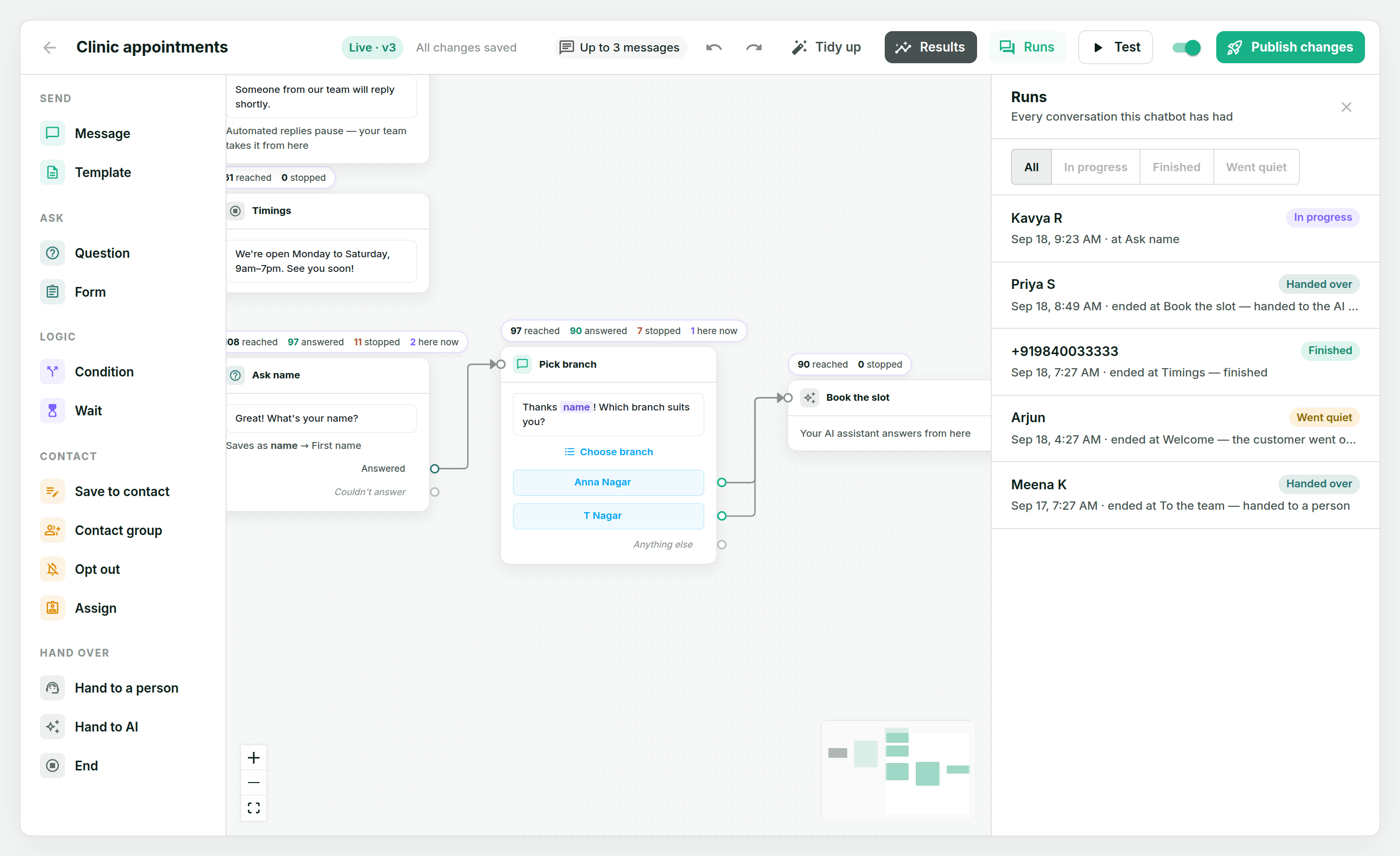
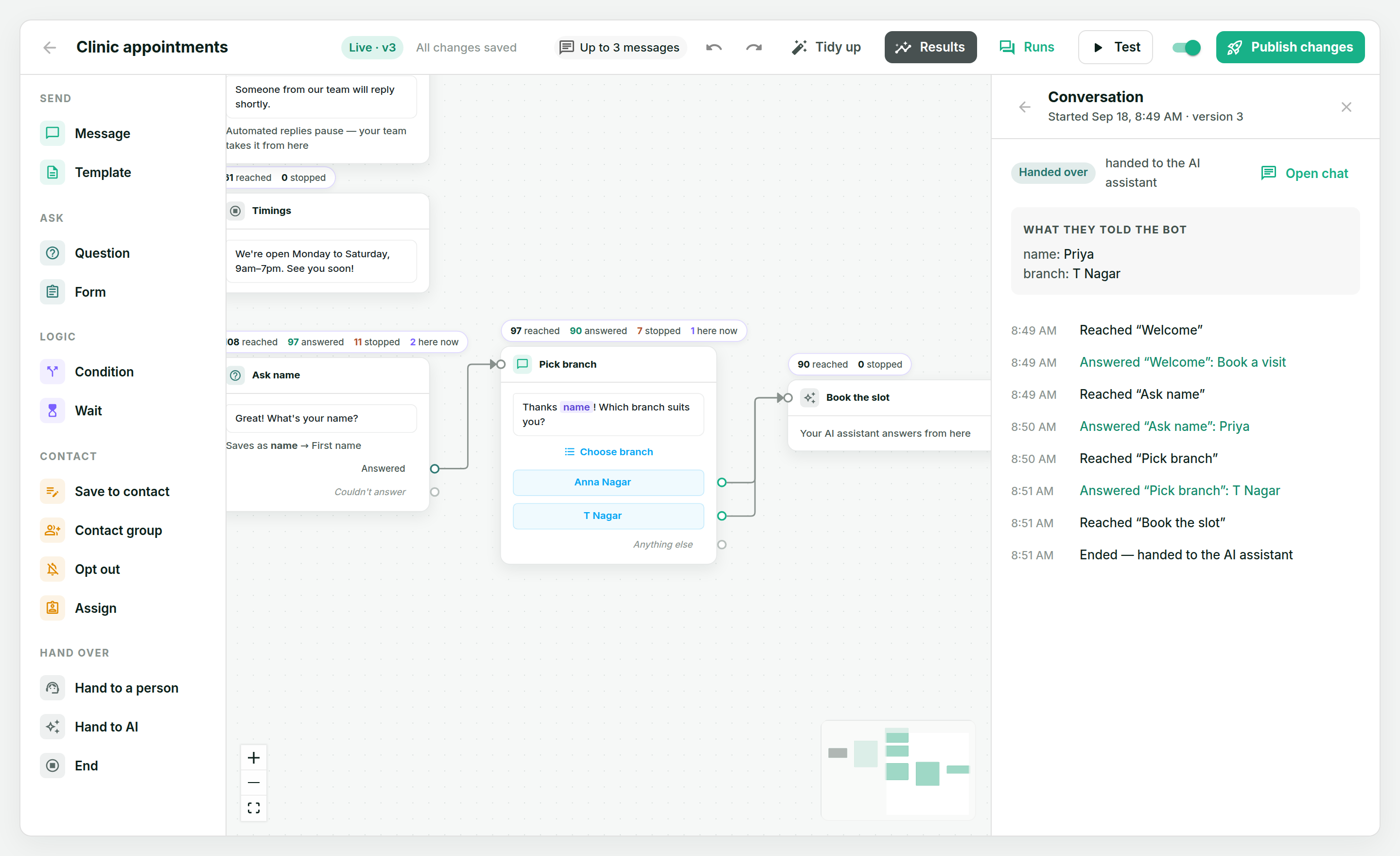
Open one to read it step by step: what they picked or typed at each step, which way a condition went, what they told the chatbot, and how it ended. Open chat takes you to the conversation in your inbox.
In your inbox
When a chatbot is in the middle of a run, the chat shows it above the messages: which chatbot, and where it's waiting.
- Replying takes over. The moment someone on your team sends a message, the chatbot stops, and automated replies — Instant Replies, the away message, the AI assistant, other chatbots — pause on that chat for 24 hours, so nothing talks over you.
- Stop ends the chatbot without you having to say anything.
- Closing the chat, or Resume on the "Automated replies are paused" bar, hands it back to automation early.
Send the answers somewhere else
Each time a chatbot finishes a run or hands it over, Wap2b can send the customer's answers to your own system — a CRM, a spreadsheet tool, anything that accepts a webhook. Add an endpoint under Integrations → Webhooks and choose Chatbot completed; the API reference shows exactly what arrives.
Answers can also be kept on the contact itself — choose a contact field under "Also save on the contact" on a question — and from there they're in your contact list, your exports, and your broadcasts.