
Personalise each message
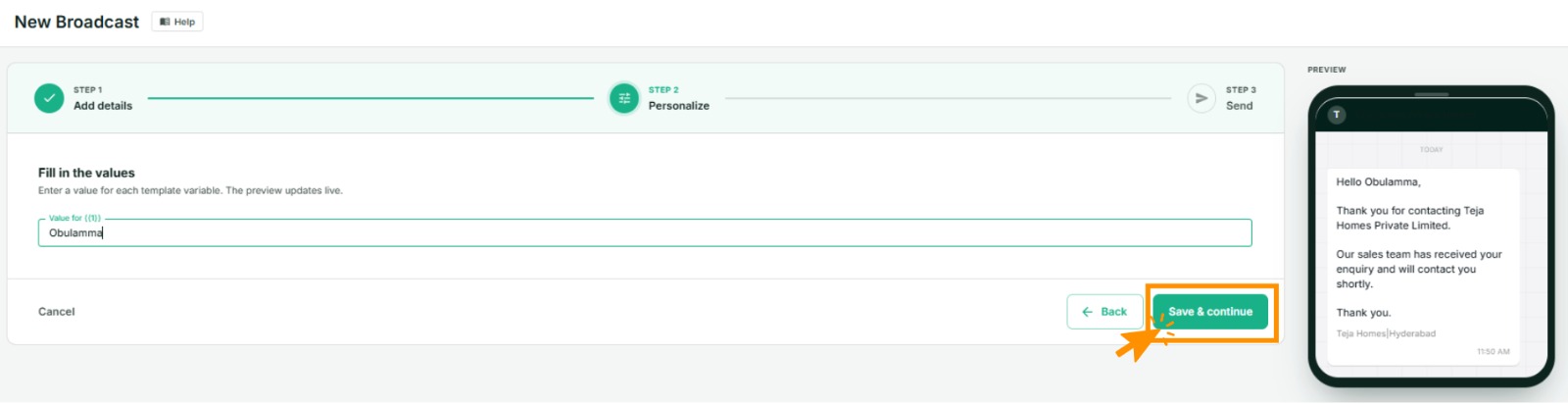
If your template has blanks — {{1}}, {{2}} — this is where they get filled. It is
Step 2 of the broadcast wizard, and it only appears when the template has variables.
Two ways to fill them
Same value for everyone
Type one value and every recipient gets it. Right for things that genuinely do not vary:
Our shop will be closed on
{{1}}for the holiday.
A different value per person
Upload a spreadsheet where each row is a recipient and each column is a variable. This is what makes a broadcast feel like a personal message rather than a circular:
Hi
{{1}}, your order{{2}}is out for delivery.
Steps for the uploaded-list route
- In Step 1, choose Upload list as the recipient type. (This option only appears when the template has variables.)
- Prepare your spreadsheet: one row per recipient, a column for the phone number, then one column per variable.
- Upload it.
- In Step 2, match each variable to a column —
{{1}}to the first-name column,{{2}}to the order-number column, and so on. - Check the preview. It renders one real recipient's message, with their actual values.
- Continue to Step 3 and send.
Getting the spreadsheet right
- Phone numbers, digits only. No leading zero, no spaces, no brackets. Format the column as Text in Excel before pasting, or it will silently mangle them.
- A column per variable, and no empty cells. A blank cell means that person gets a message with a gap in it.
- Match the numbering.
{{1}}is the first variable in the body, not the first column in your sheet. Read the template. - Check dates and amounts as text.
14/03may arrive as14-Maror44634depending on Excel's mood. Write them the way you want them to appear.
The preview is not optional
A misaligned column sends five hundred people a message addressed to the wrong name, or quoting someone else's order number. Read the preview properly before continuing.
Writing templates that personalise well
- Name plus one useful fact is the sweet spot. More variables mean more columns to get wrong for very little extra warmth.
- Never leave a variable able to be empty. A template reading "Hi , your order is ready" is worse than one with no name at all.
- Watch the length. Long values push a short message into something that gets truncated on a small screen.
If something goes wrong
- "Upload list" is not offered. The template has no variables, so there is nothing to personalise.
- Rows were rejected on upload. Almost always number formatting. See Import from a spreadsheet — the same rules apply.
- The preview shows the wrong value in a blank. The column mapping is off by one. Re-map and re-check.
- You need to change something after sending. You cannot. A sent message is delivered. Send a correction to the affected people from Chatbox if their window is open, or as a new broadcast if not.